> ## Documentation Index
> Fetch the complete documentation index at: https://docs-platform.arklex.ai/llms.txt
> Use this file to discover all available pages before exploring further.
# Agents
> Connect and manage the AI agents you want to test in Arklex.
An agent in Arklex represents the AI system you want to test. Connecting an agent stores its API configuration once, so you can run simulations against it repeatedly without re-entering connection details.
New here? The [Quickstart](/quickstart) walks you through connecting your first agent end to end. This page is the full reference for every field and option.
***
## See your connected agents
Navigate to **Agents** in the sidebar to see every agent in your organization. Each card shows the agent name, its description, and running totals of how many simulations and evaluations have used it. Click any card to open its detail page.
***
## Connect a new agent
Click **Connect Agent** on the Agents page, then fill in the form.
A descriptive name that's easy to spot in simulation results — e.g. `Banking Assistant` or `Banking Assistant — Staging`.
Optional, but handy for noting what changed between versions.
Arklex currently supports **API Endpoint**. Direct Arklex Agent integration is coming soon.
**Chat Completions** — for endpoints that accept a standard `messages` array and return a completion. Compatible with OpenAI, Anthropic, and most LLM-backed agents.
**A2A** — for agents using the Agent-to-Agent protocol.
The full URL Arklex calls when running simulations. Local development is typically `http://localhost:/your/path`; for deployed agents, use your production or staging URL.
Any HTTP headers your endpoint requires, for example:
```text theme={null}
Authorization: Bearer sk-...
X-Api-Key: your-key
Content-Type: application/json
```
Header values are encrypted at rest with AES-256. After saving, the platform shows masked values and never returns the raw secret — the lock icon above the headers table is your reminder that values are stored securely.
### Configure the request body
**Chat Completions agents** have two body sections:
* **Parameters** — key/value pairs sent alongside the messages (e.g. `model`, `temperature`, `max_tokens`). Each has a type: `str`, `int`, `float`, `bool`, or `json`.
* **Messages** — the initial message list, including a system prompt. The `system` row is always present and can't be removed. Add `user` or `assistant` rows to prime the conversation before simulation turns begin.
Arklex expects the endpoint to return a standard completion response, with the assistant's reply in the usual `choices[0].message.content` field.
Click **Import from JSON** to paste a raw request body and let Arklex split it into parameters and messages automatically.
**A2A agents** use a single generic key/value/type table for the body.
### Test and save
Click **Test Connection** before saving. Arklex sends a request using the current form values (no need to save first) and shows either a green checkmark with the response message and latency, or a red error with details. When you're ready, click **Connect Agent** — you'll land on the new agent's detail page with a confirmation toast.
***
## Manage an existing agent
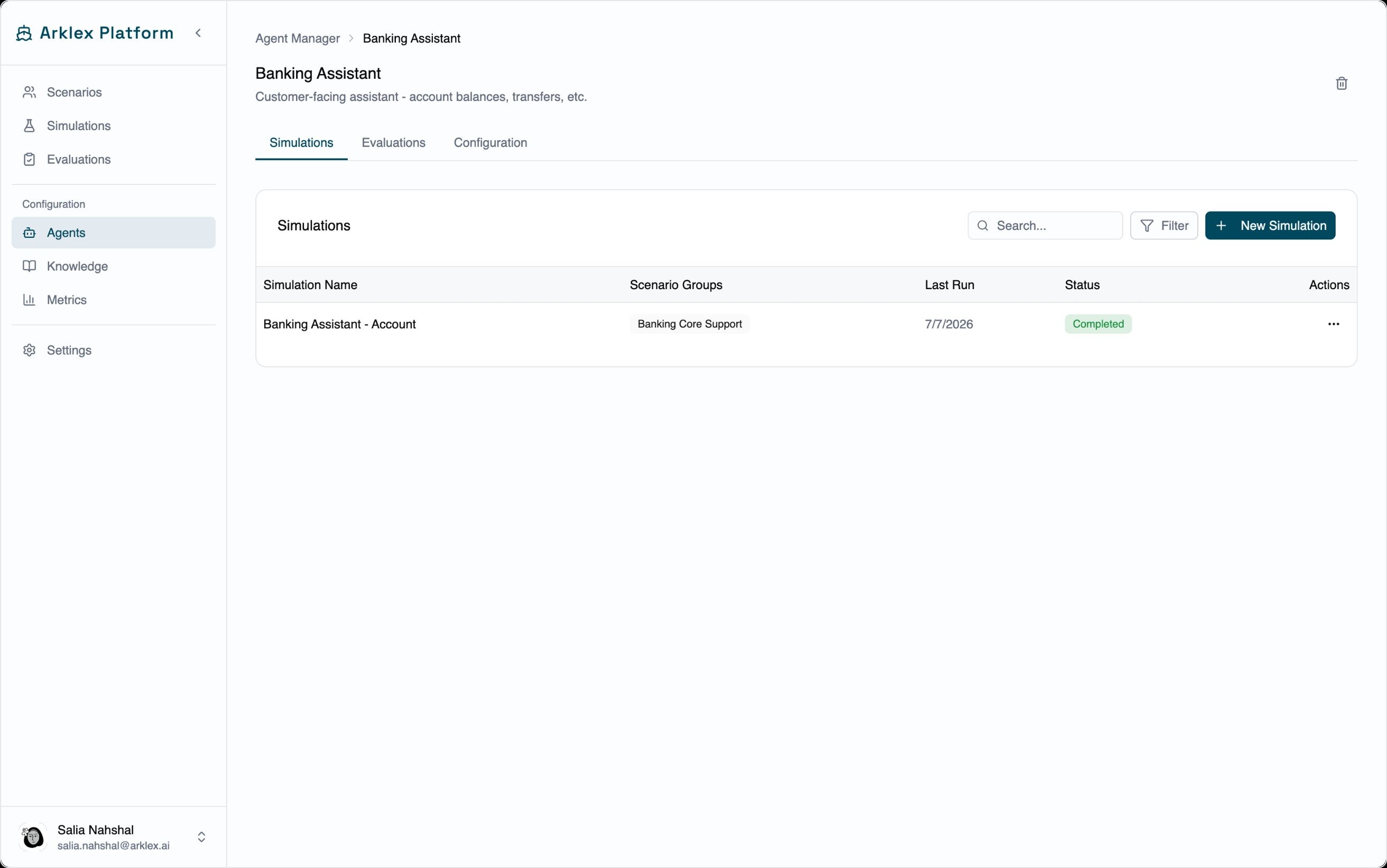
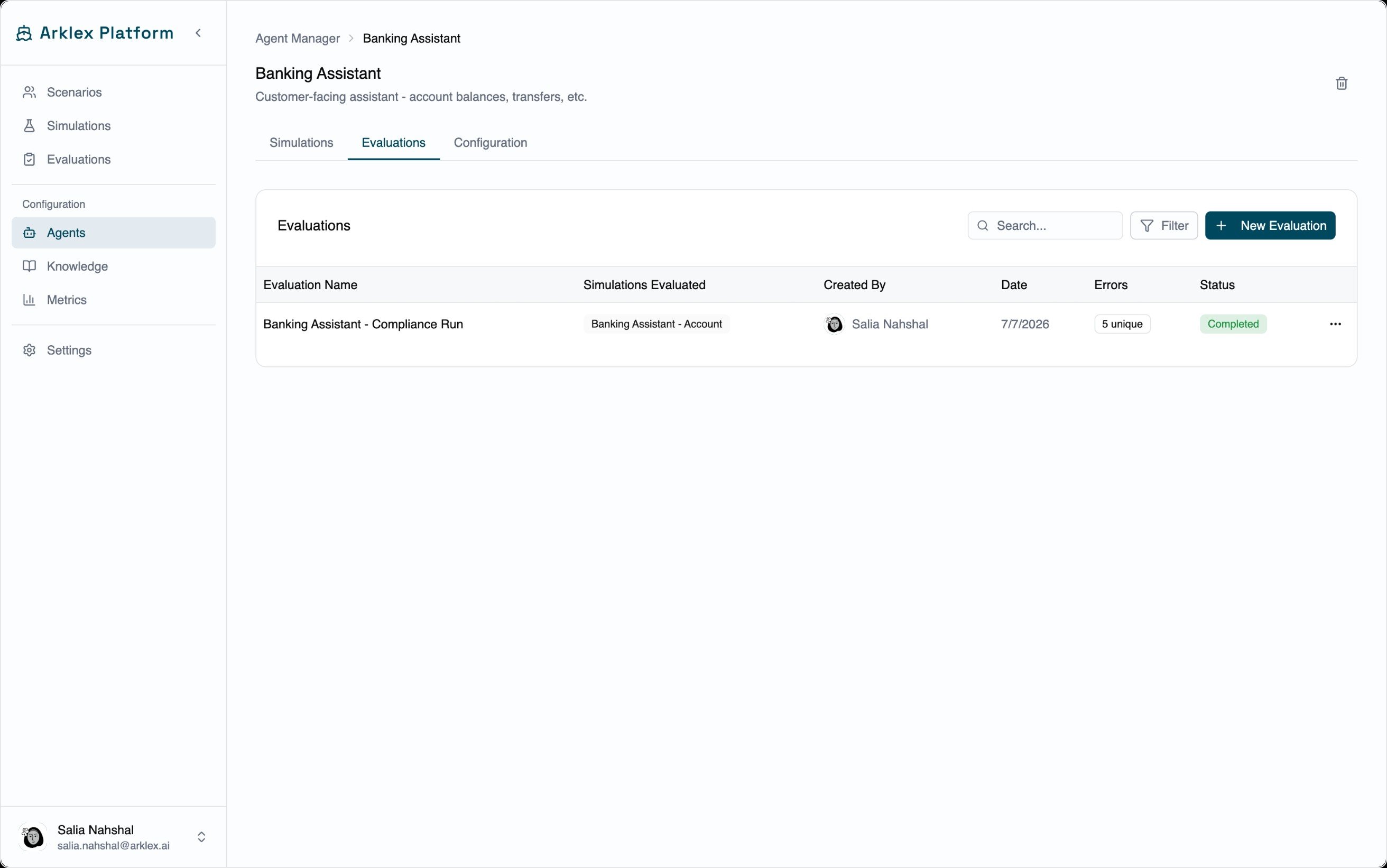
Each agent's detail page has three tabs:
A table of every simulation run against this agent, with columns for name, status, scenario count, success rate, errors, and creation date. Click any row to open that simulation.
| Status | Meaning |
| ------------- | -------------------------------------------------- |
| **Completed** | The simulation finished and transcripts are ready. |
| **Running** | The simulation is in progress. |
| **Failed** | The simulation stopped before completing. |
| **Pending** | The simulation is queued and hasn't started yet. |
 A table of every evaluation that scored simulations for this agent — name, simulations evaluated, status, errors, and date. Click any row to open the evaluation.
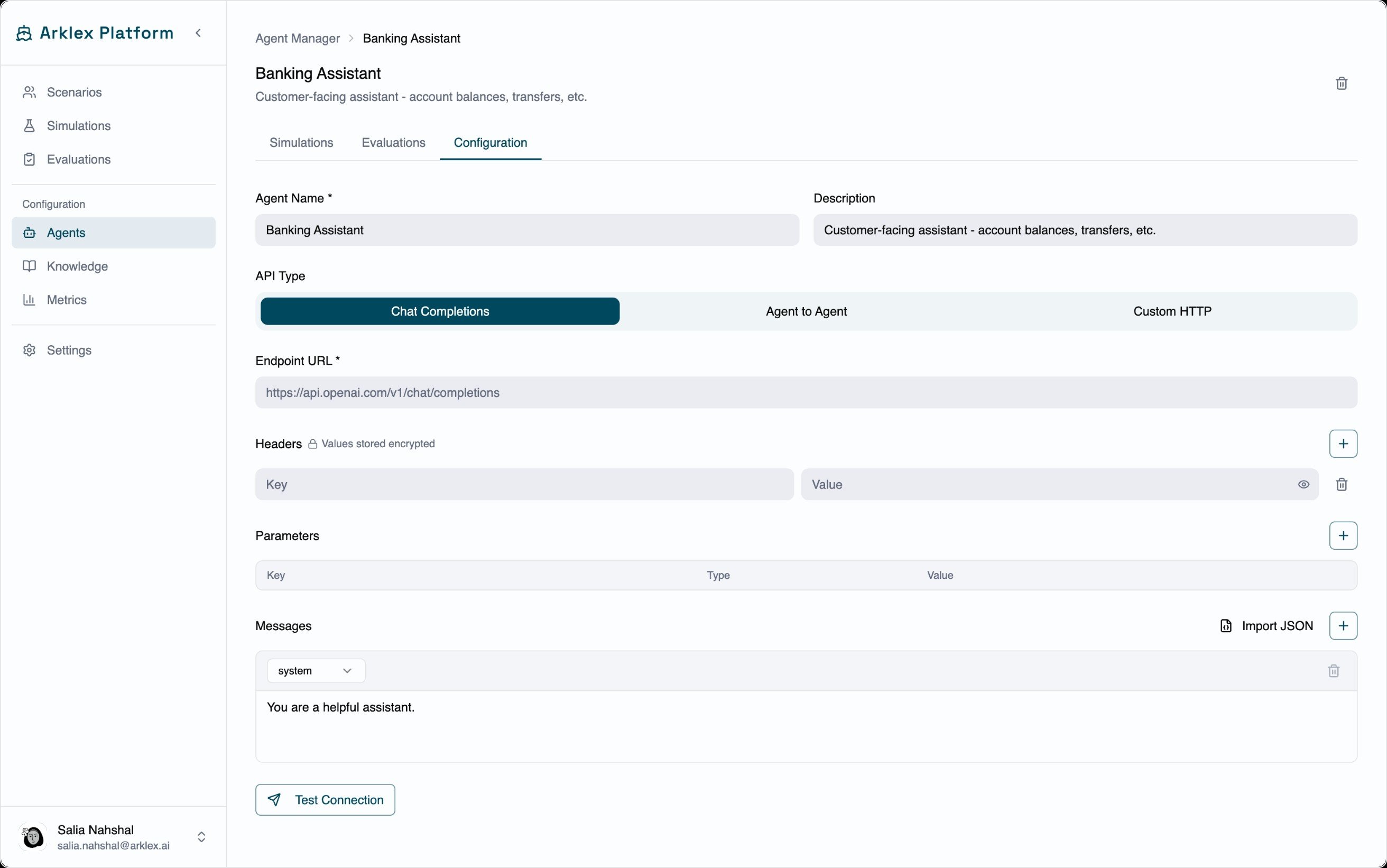
 The same fields from the Connect Agent form, pre-filled with saved values. Edit any field, then:
* **Save** — sends only the changed fields to the API.
* **Discard** — resets everything to the last saved values.
* **Test Connection** — tests using the saved configuration (no body needed).
* **Delete agent** — a destructive action at the bottom of the form. Deletion is blocked while any simulation or evaluation still references this agent; delete those first, then return here to confirm.
To change a header without losing its saved encrypted value, leave the value field blank — only rows where you enter a new value are updated on save.
The same fields from the Connect Agent form, pre-filled with saved values. Edit any field, then:
* **Save** — sends only the changed fields to the API.
* **Discard** — resets everything to the last saved values.
* **Test Connection** — tests using the saved configuration (no body needed).
* **Delete agent** — a destructive action at the bottom of the form. Deletion is blocked while any simulation or evaluation still references this agent; delete those first, then return here to confirm.
To change a header without losing its saved encrypted value, leave the value field blank — only rows where you enter a new value are updated on save.
 ***
## FAQ
Yes. There's no uniqueness constraint on the endpoint URL, so you can represent different configurations of the same agent — different system prompts, temperatures, and so on — as separate agents for side-by-side comparison.
No. Deletion is rejected while any simulation or evaluation still references the agent. Delete those first, then delete the agent.
Yes. Leave a header value blank when editing to keep the existing encrypted value. Only rows where you enter a new value are updated on save.
***
## FAQ
Yes. There's no uniqueness constraint on the endpoint URL, so you can represent different configurations of the same agent — different system prompts, temperatures, and so on — as separate agents for side-by-side comparison.
No. Deletion is rejected while any simulation or evaluation still references the agent. Delete those first, then delete the agent.
Yes. Leave a header value blank when editing to keep the existing encrypted value. Only rows where you enter a new value are updated on save.