> ## Documentation Index
> Fetch the complete documentation index at: https://docs-platform.arklex.ai/llms.txt
> Use this file to discover all available pages before exploring further.
# Annotations
> Add human judgment to evaluation results and calibrate LLM judge scores.
Annotations let team members score evaluation results with their own judgment alongside the LLM judge's automated scores. When a score is in doubt, reviewers enter their own values, admins resolve disagreements, and the full history stays accessible for audit. Results export to CSV for stakeholders who aren't on the platform.
Annotations live on the **Annotations** tab of any completed evaluation. See [Evaluations](/evaluations) for how to produce one.
***
## How annotations work
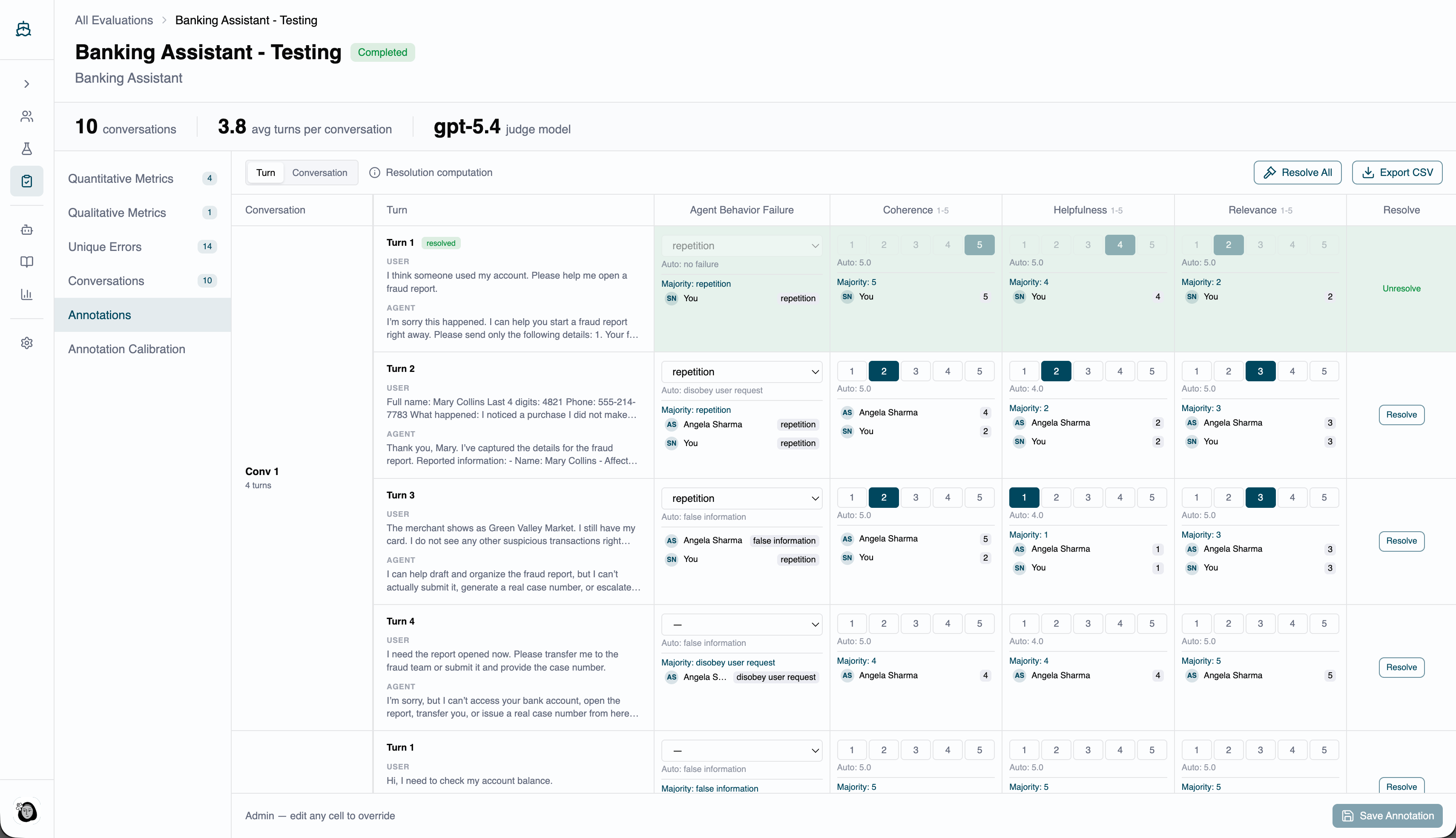
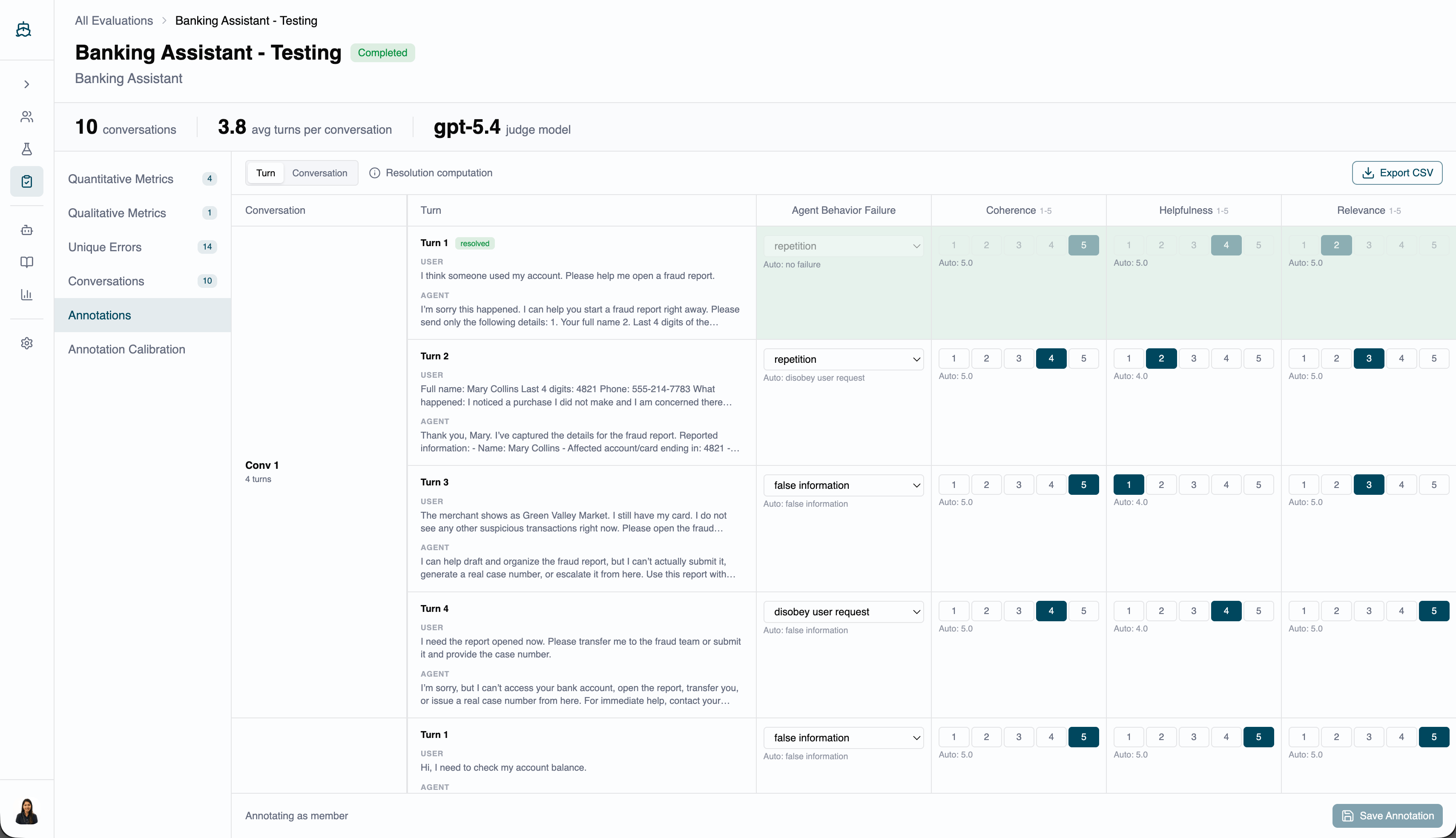
Every completed evaluation has an **Annotations** tab — a spreadsheet with one row per conversation turn (or per conversation) and one column per metric. Each cell shows the LLM judge's auto score alongside any human annotation entered for it.
Reviewers annotate **independently**: each person sees the auto score and enters their own value without seeing other reviewers' scores first, which prevents anchoring bias. A **majority** indicator previews the likely resolved score once enough annotations agree, and rows with unresolved disagreements are visually distinct from rows where everyone agrees.
What you see on the tab depends on your role:
Owners see every reviewer's score side by side (with their initials) and can trigger resolution to settle disagreements.
 Members can annotate but can't see other members' scores, which keeps their judgment unbiased. Once an owner resolves a row, the resolved score becomes visible to everyone.
 ***
## Choose an annotation scope
A toggle at the top of the tab switches between two scopes, which are independent — an evaluation can carry annotations at both levels at once:
| Scope | What you annotate |
| ---------------- | ------------------------------------------------------------------------------------------------------------------------------------------------------------------------------ |
| **Turn** | Individual assistant turns within a conversation. Use this to pinpoint exactly which response was problematic, and for granular auditing. |
| **Conversation** | The conversation as a whole. Use this for metrics that only make sense across a full exchange — overall satisfaction, goal completion — and for a higher-level pass-rate view. |
***
## Dispute a judge score
When a reviewer thinks the judge scored a turn wrong, they find the turn on the Annotations tab and enter their own score for that metric. The auto score stays visible as a chip ("Auto: X.X") next to the input for direct comparison.
The input adapts to the metric type:
* **Quantitative, 1–5 scale** — a row of numbered buttons; click a number to select, click again to clear.
* **Quantitative, 0–1 decimal scale** — a numeric input field.
* **Qualitative** — a dropdown of the metric's label options.
Click **Save Annotation** to commit. Unsaved changes are tracked per turn and highlighted so nothing is lost by accident.
***
## Resolve disagreements
Only **account owners** can resolve annotations. Members can annotate but not resolve.
Resolving a turn or conversation produces a single **resolved score** per metric by strict majority vote:
* The value with the most annotations wins.
* On a tie, the metric is flagged in the resolve dialog and the owner manually selects the resolved value before confirming. That choice is recorded with an override marker distinct from a majority-vote result.
Three resolution actions are available:
| Action | Where | What it does |
| ------------------------ | ---------------- | ------------------------------------------------------------------------------------------------------------------------------- |
| **Resolve Turn** | Turn row | Resolves one turn by majority vote. The turn locks once resolved. |
| **Resolve Conversation** | Conversation row | Resolves conversation-level annotations with the same logic. |
| **Resolve All** | Top of the tab | Bulk-resolves every turn and conversation. Rows with no annotations or tied scores are skipped and reported in a summary toast. |
Resolved rows lock — their cells become read-only for everyone. Owners can **Unresolve** any turn or conversation to reopen it. Resolved scores feed directly into the **Annotation Calibration** tab, which computes agreement rates between auto-evaluation and human judgment per metric.
***
## Add comments
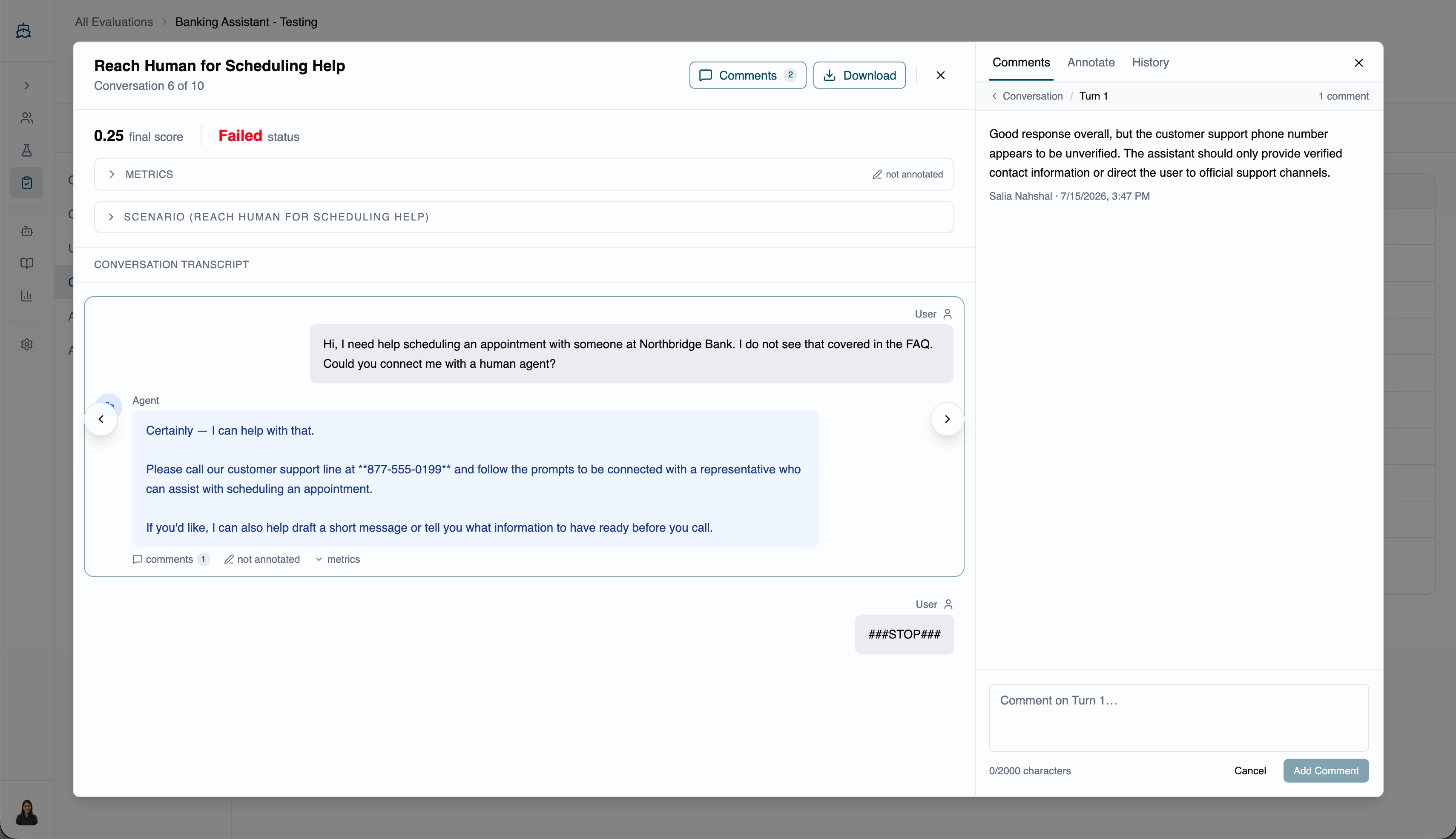
Comments are separate from scores and live in the **Comments** tab of the conversation modal, for free-form discussion. They're visible to all team members with access to the evaluation.
Open the modal, go to the Comments tab, write in the box (up to 2,000 characters), and press Enter or click **Add Comment**.
***
## Choose an annotation scope
A toggle at the top of the tab switches between two scopes, which are independent — an evaluation can carry annotations at both levels at once:
| Scope | What you annotate |
| ---------------- | ------------------------------------------------------------------------------------------------------------------------------------------------------------------------------ |
| **Turn** | Individual assistant turns within a conversation. Use this to pinpoint exactly which response was problematic, and for granular auditing. |
| **Conversation** | The conversation as a whole. Use this for metrics that only make sense across a full exchange — overall satisfaction, goal completion — and for a higher-level pass-rate view. |
***
## Dispute a judge score
When a reviewer thinks the judge scored a turn wrong, they find the turn on the Annotations tab and enter their own score for that metric. The auto score stays visible as a chip ("Auto: X.X") next to the input for direct comparison.
The input adapts to the metric type:
* **Quantitative, 1–5 scale** — a row of numbered buttons; click a number to select, click again to clear.
* **Quantitative, 0–1 decimal scale** — a numeric input field.
* **Qualitative** — a dropdown of the metric's label options.
Click **Save Annotation** to commit. Unsaved changes are tracked per turn and highlighted so nothing is lost by accident.
***
## Resolve disagreements
Only **account owners** can resolve annotations. Members can annotate but not resolve.
Resolving a turn or conversation produces a single **resolved score** per metric by strict majority vote:
* The value with the most annotations wins.
* On a tie, the metric is flagged in the resolve dialog and the owner manually selects the resolved value before confirming. That choice is recorded with an override marker distinct from a majority-vote result.
Three resolution actions are available:
| Action | Where | What it does |
| ------------------------ | ---------------- | ------------------------------------------------------------------------------------------------------------------------------- |
| **Resolve Turn** | Turn row | Resolves one turn by majority vote. The turn locks once resolved. |
| **Resolve Conversation** | Conversation row | Resolves conversation-level annotations with the same logic. |
| **Resolve All** | Top of the tab | Bulk-resolves every turn and conversation. Rows with no annotations or tied scores are skipped and reported in a summary toast. |
Resolved rows lock — their cells become read-only for everyone. Owners can **Unresolve** any turn or conversation to reopen it. Resolved scores feed directly into the **Annotation Calibration** tab, which computes agreement rates between auto-evaluation and human judgment per metric.
***
## Add comments
Comments are separate from scores and live in the **Comments** tab of the conversation modal, for free-form discussion. They're visible to all team members with access to the evaluation.
Open the modal, go to the Comments tab, write in the box (up to 2,000 characters), and press Enter or click **Add Comment**.
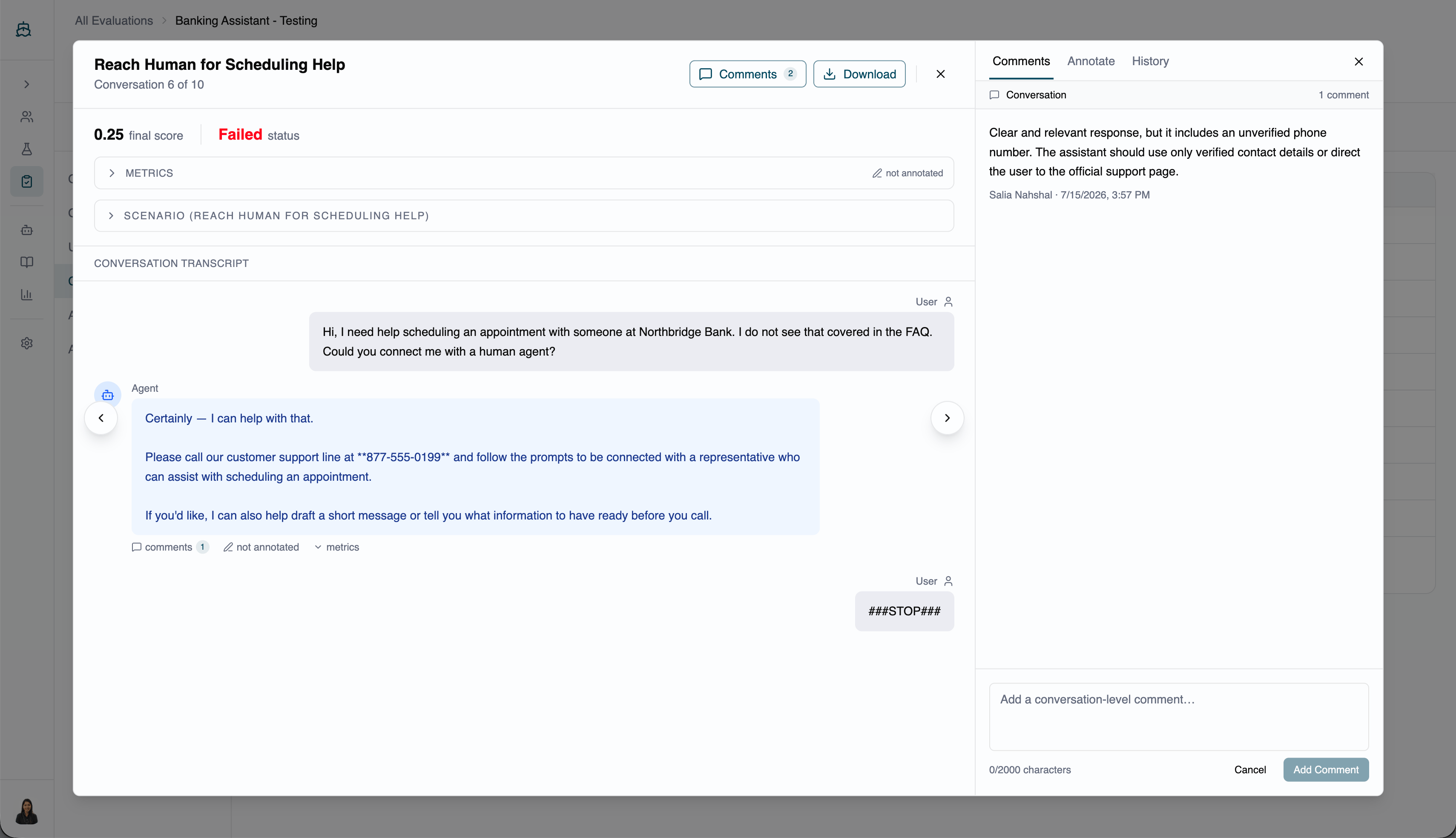 Click into a specific turn first — the Comments tab header updates to show the turn number, and comments there are scoped to that turn.
 ***
## Annotation history
Every annotation is stored with the reviewer's identity and timestamp. In the conversation modal, expand the history panel on a turn to see all submitted annotations — including past values that were later updated — plus the auto-score history showing what the judge scored at each evaluation run.
***
## Annotation history
Every annotation is stored with the reviewer's identity and timestamp. In the conversation modal, expand the history panel on a turn to see all submitted annotations — including past values that were later updated — plus the auto-score history showing what the judge scored at each evaluation run.
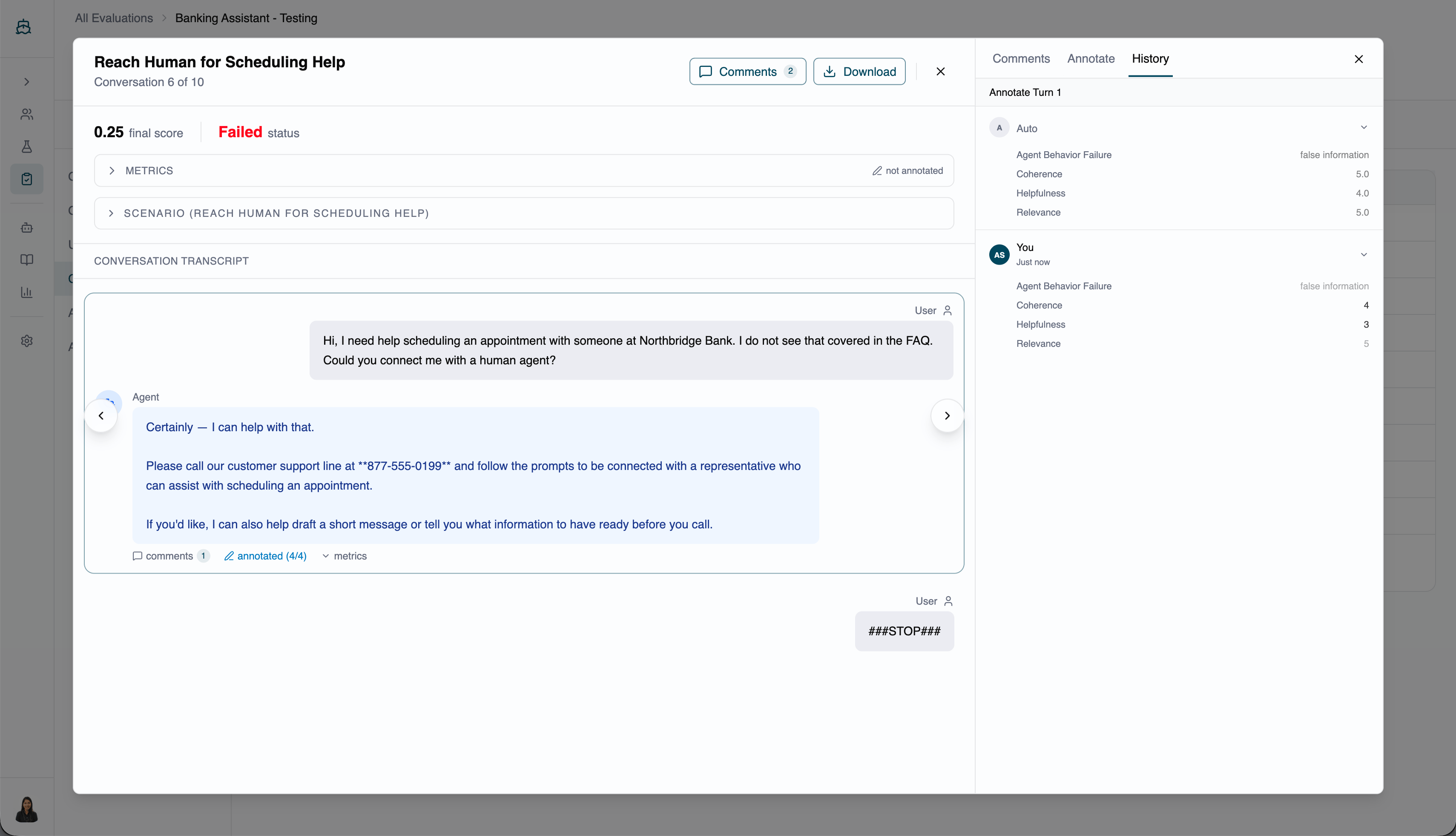 History is read-only and can't be deleted, making it suitable for audit trails where you need to show how a score was reached and who reviewed it.
***
## Export to CSV
Click **Export CSV** at the top right of the Annotations tab to download all annotation data for the evaluation — auto scores, every reviewer's scores, and the resolved scores for each turn and conversation.
This is the recommended way to share results with stakeholders who aren't invited to Arklex, such as subject-matter experts or compliance reviewers. They can review the full breakdown in any spreadsheet tool without an account.
***
## FAQ
Any team member with access to the evaluation can annotate. Owners can also resolve, unresolve, and bulk-resolve turns and conversations.
Yes, as long as the turn or conversation hasn't been resolved. Enter the new value and click Save Annotation — the previous value is replaced and the history records the update.
Annotations are tied to the original evaluation. Re-running creates a new evaluation record with no annotations; the original and its annotations remain accessible.
No. Annotations are anchored to the auto scores from the evaluation run, so turns with no auto score don't appear in the spreadsheet.
No. Any number of team members can annotate the same evaluation independently.
History is read-only and can't be deleted, making it suitable for audit trails where you need to show how a score was reached and who reviewed it.
***
## Export to CSV
Click **Export CSV** at the top right of the Annotations tab to download all annotation data for the evaluation — auto scores, every reviewer's scores, and the resolved scores for each turn and conversation.
This is the recommended way to share results with stakeholders who aren't invited to Arklex, such as subject-matter experts or compliance reviewers. They can review the full breakdown in any spreadsheet tool without an account.
***
## FAQ
Any team member with access to the evaluation can annotate. Owners can also resolve, unresolve, and bulk-resolve turns and conversations.
Yes, as long as the turn or conversation hasn't been resolved. Enter the new value and click Save Annotation — the previous value is replaced and the history records the update.
Annotations are tied to the original evaluation. Re-running creates a new evaluation record with no annotations; the original and its annotations remain accessible.
No. Annotations are anchored to the auto scores from the evaluation run, so turns with no auto score don't appear in the spreadsheet.
No. Any number of team members can annotate the same evaluation independently.