> ## Documentation Index
> Fetch the complete documentation index at: https://docs-platform.arklex.ai/llms.txt
> Use this file to discover all available pages before exploring further.
# Evaluations
> Score simulation conversations with an LLM judge and detect behavioral failures.
An evaluation scores the conversations from one or more simulations using an LLM judge. It produces per-metric scores, detects behavioral failures, and supports human annotation for calibration.
New here? The [Quickstart](/quickstart) walks you through running your first evaluation end to end. This page is the full reference for every section and option.
***
## See your evaluations
Navigate to **Evaluations** in the sidebar to see every evaluation in your organization.
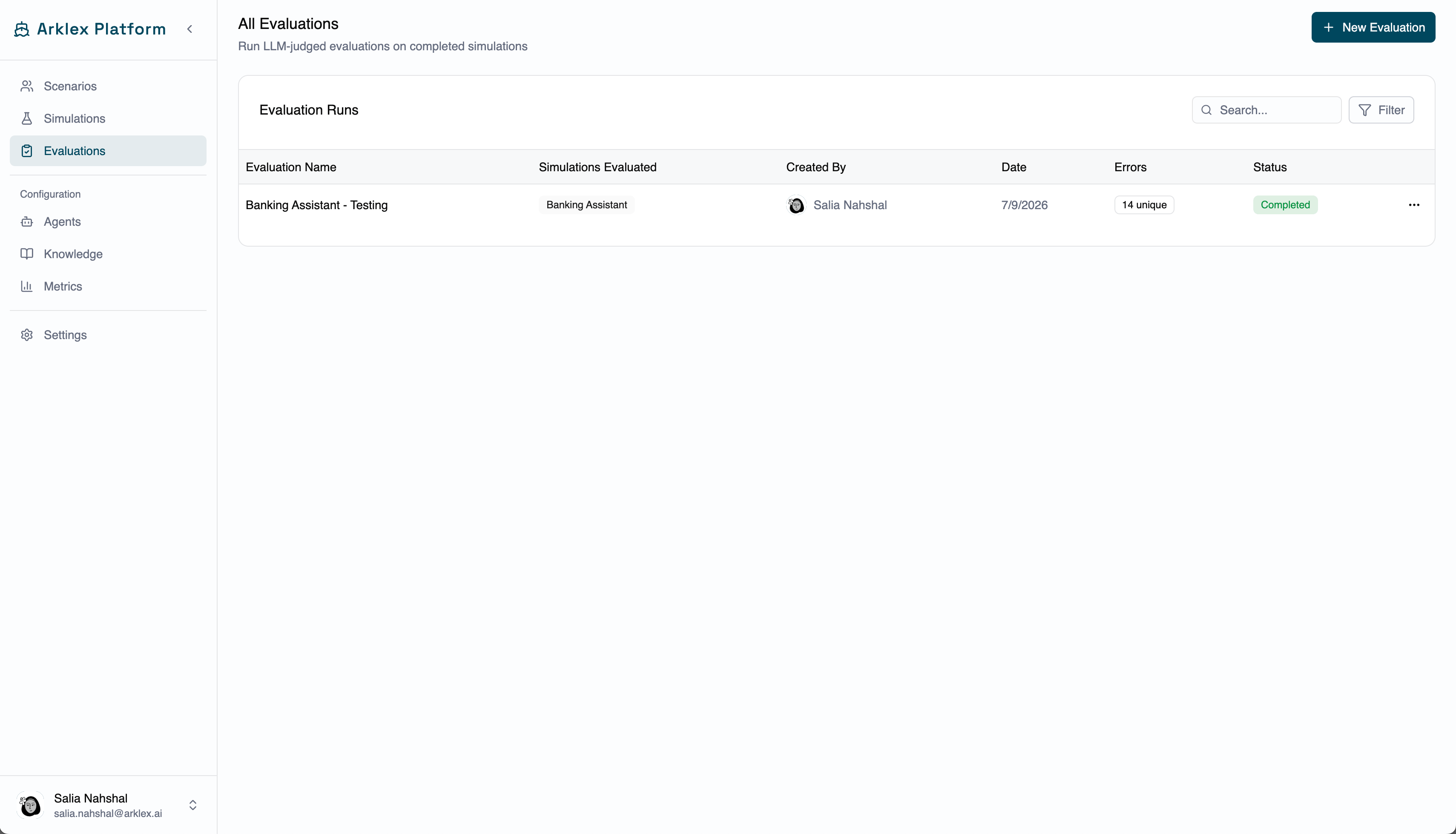 Each row shows the evaluation **name**, the **simulations** whose conversations were scored, who **created** it, the **date**, the number of behavioral **errors** detected, and its **status** (Completed, Running, Failed, or Cancelled). Use **Filter** to narrow by creator or status, **Search** to filter by evaluation or simulation name, and click any row to open the detail page.
***
## Create an evaluation
Click **New Evaluation** on the Evaluations page — or, from the Simulations page, open the kebab menu on a completed simulation and select **New Evaluation** to start with that simulation pre-selected.
Each row shows the evaluation **name**, the **simulations** whose conversations were scored, who **created** it, the **date**, the number of behavioral **errors** detected, and its **status** (Completed, Running, Failed, or Cancelled). Use **Filter** to narrow by creator or status, **Search** to filter by evaluation or simulation name, and click any row to open the detail page.
***
## Create an evaluation
Click **New Evaluation** on the Evaluations page — or, from the Simulations page, open the kebab menu on a completed simulation and select **New Evaluation** to start with that simulation pre-selected.
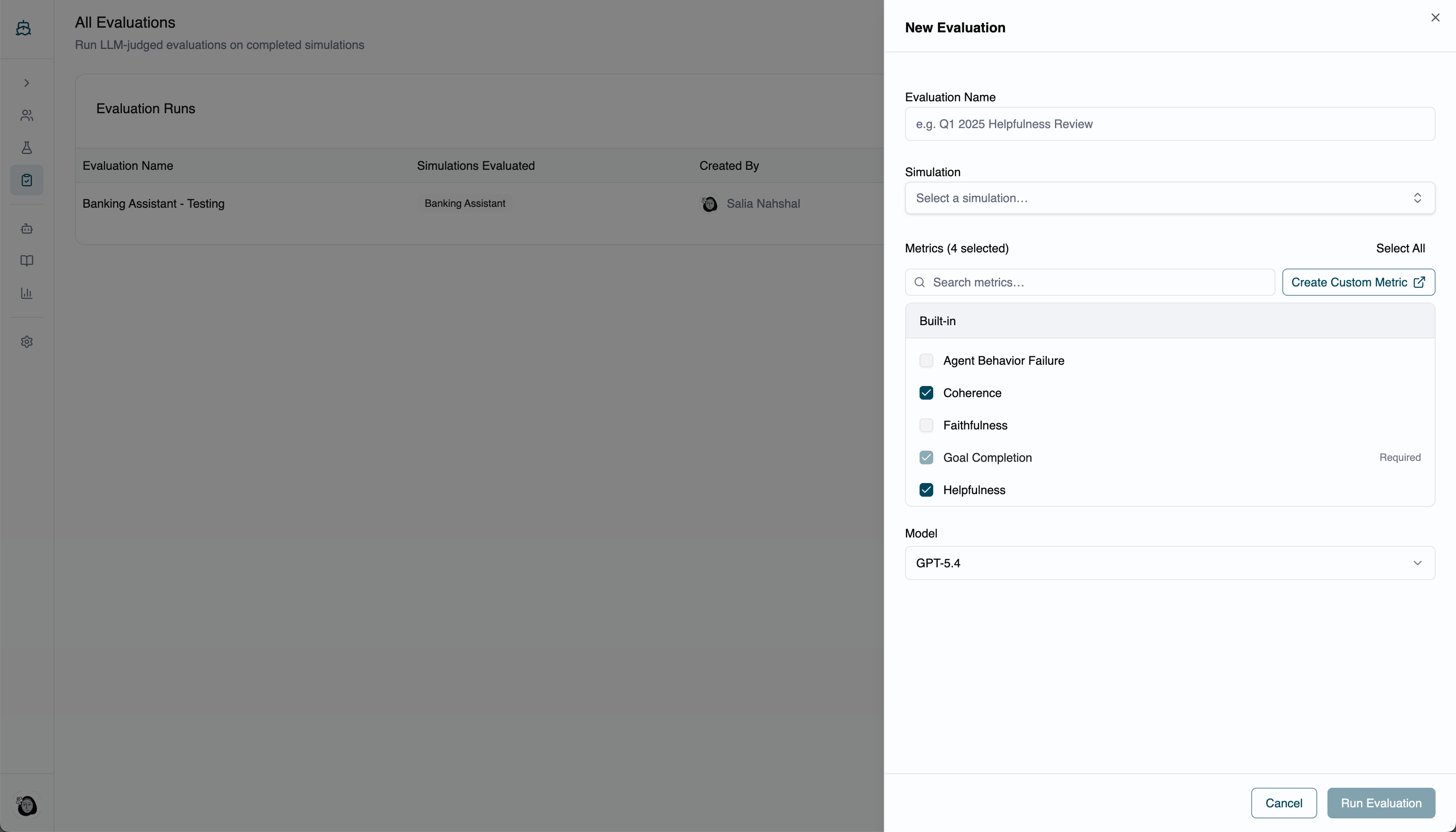 A name for this run — e.g. "Core Support — Identity & Policy Check."
One or more completed simulations to evaluate. The selector lists all completed simulations; search or use the **Created by me** filter to narrow it.
The metrics to score. **Goal Completion is always included** and can't be deselected. Add any built-in or custom metrics you care about — see [Metrics](/metrics) for the full list and how to create your own.
Click **Run Evaluation** to start. Arklex scores each conversation and updates the status to **Completed** when done.
***
## Understand the scores
Before diving into the detail page, it helps to know the two scales in play:
* **Most metrics** are scored **1–5**, where 5 is the best possible performance. On the detail page these are shown as a score out of 5 with a progress bar and a band label.
* **Goal Completion** is scored **0–1**, where 1.0 means the simulated user's goal was fully achieved. Final conversation scores also use the 0–1 scale.
Band labels apply to the 1–5 metrics based on the percentage of the maximum score:
| Band | Score range | Indicator |
| --------------------- | ------------ | --------- |
| **Excellent** | ≥ 80% of max | Emerald |
| **Good** | 60–80% | Sky blue |
| **Needs Improvement** | 40–60% | Amber |
| **Poor** | \< 40% | Rose |
## Read an evaluation's results
The detail page opens with a stats strip — total **Conversations** scored and **Avg Turns** per conversation — and a left sidebar with six sections:
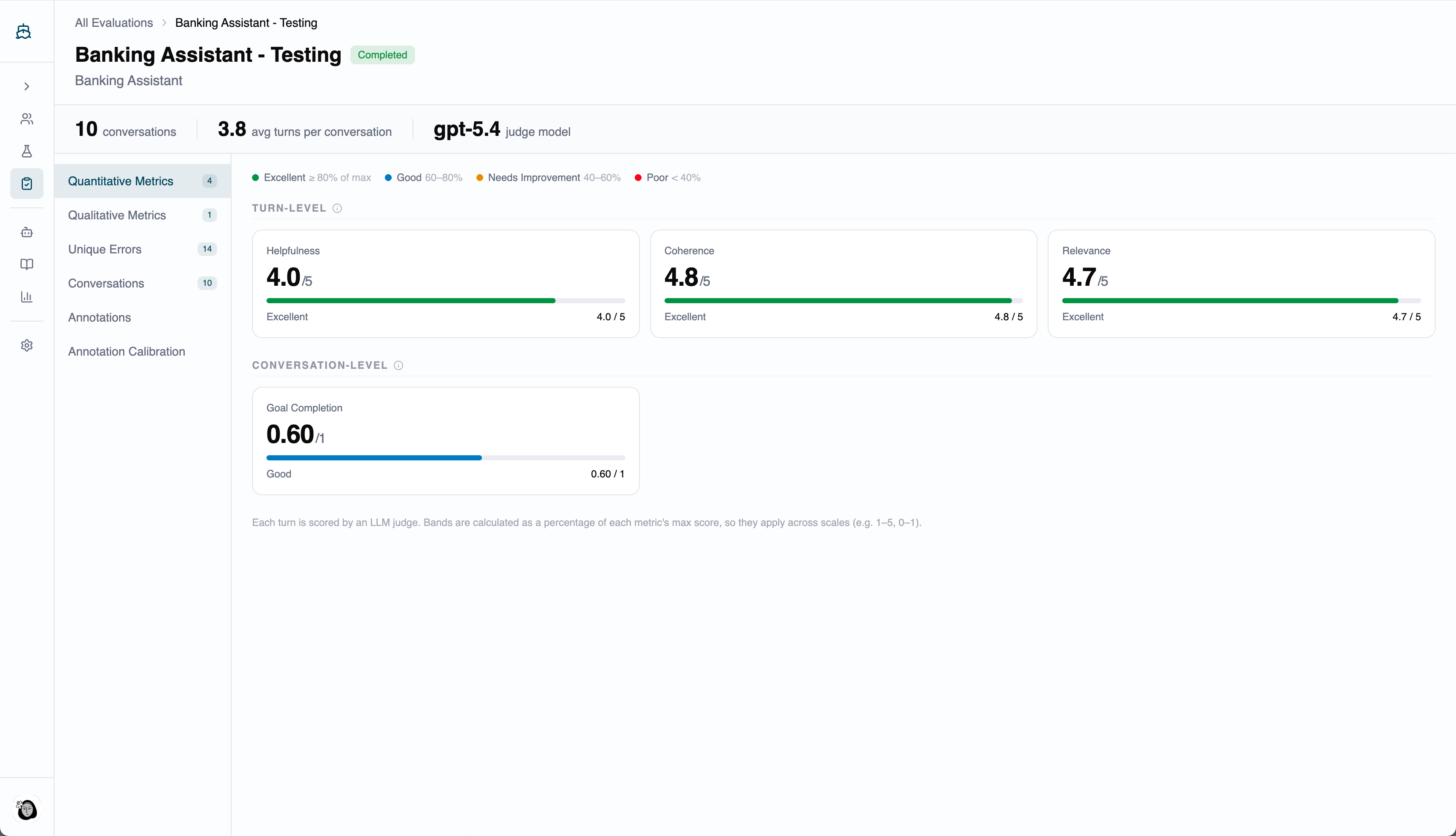
A card for each numeric metric, split into **Turn-level** (scored per assistant turn) and **Conversation-level** (scored once for the full conversation). Each card shows the metric name and score, a progress bar, and a band label from the table above.
A name for this run — e.g. "Core Support — Identity & Policy Check."
One or more completed simulations to evaluate. The selector lists all completed simulations; search or use the **Created by me** filter to narrow it.
The metrics to score. **Goal Completion is always included** and can't be deselected. Add any built-in or custom metrics you care about — see [Metrics](/metrics) for the full list and how to create your own.
Click **Run Evaluation** to start. Arklex scores each conversation and updates the status to **Completed** when done.
***
## Understand the scores
Before diving into the detail page, it helps to know the two scales in play:
* **Most metrics** are scored **1–5**, where 5 is the best possible performance. On the detail page these are shown as a score out of 5 with a progress bar and a band label.
* **Goal Completion** is scored **0–1**, where 1.0 means the simulated user's goal was fully achieved. Final conversation scores also use the 0–1 scale.
Band labels apply to the 1–5 metrics based on the percentage of the maximum score:
| Band | Score range | Indicator |
| --------------------- | ------------ | --------- |
| **Excellent** | ≥ 80% of max | Emerald |
| **Good** | 60–80% | Sky blue |
| **Needs Improvement** | 40–60% | Amber |
| **Poor** | \< 40% | Rose |
## Read an evaluation's results
The detail page opens with a stats strip — total **Conversations** scored and **Avg Turns** per conversation — and a left sidebar with six sections:
A card for each numeric metric, split into **Turn-level** (scored per assistant turn) and **Conversation-level** (scored once for the full conversation). Each card shows the metric name and score, a progress bar, and a band label from the table above.
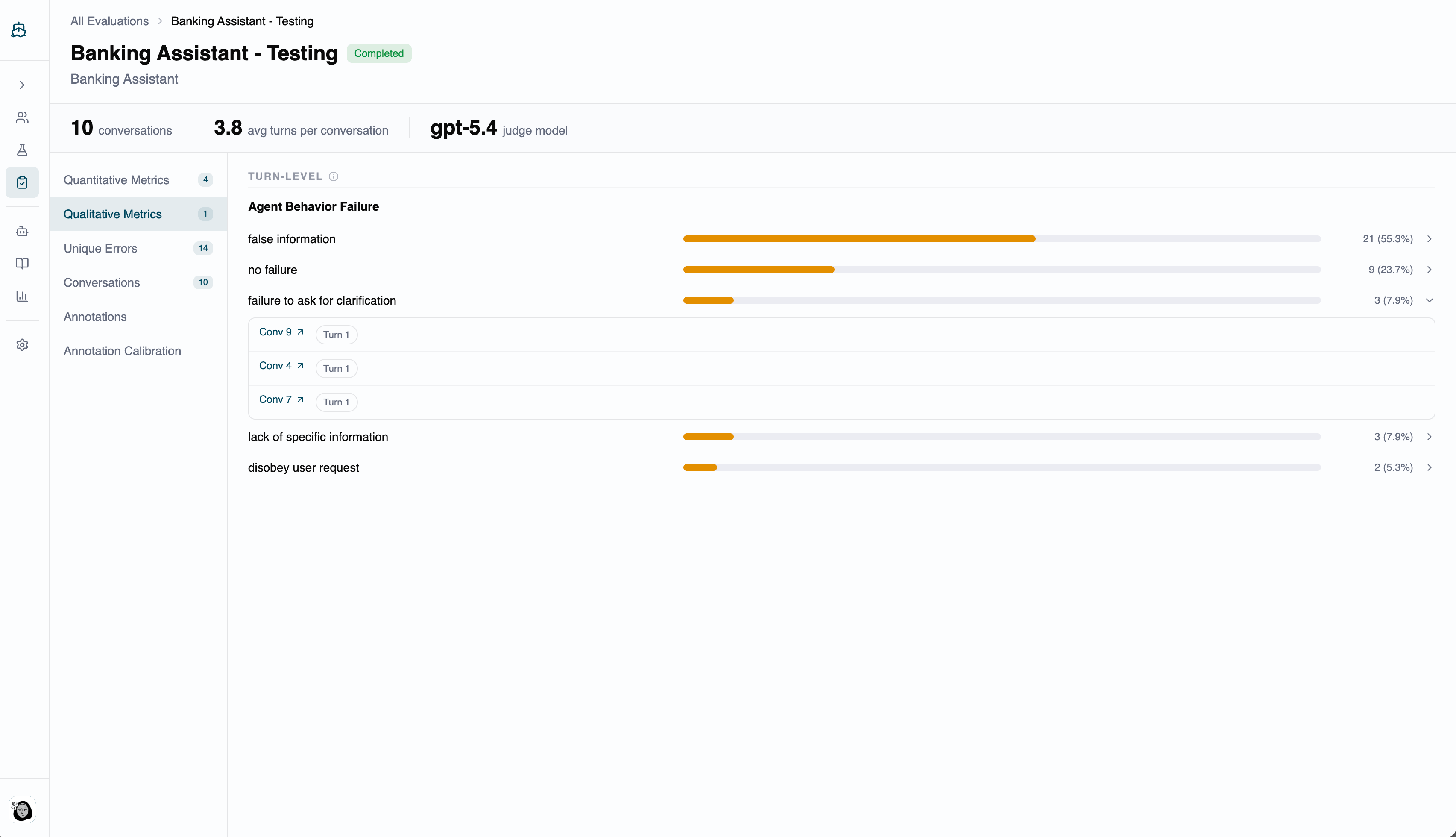
 For metrics that produce categorical labels (e.g. sentiment, tone, response type), this shows the label distribution across all conversations. Expand a label row to see where it was assigned, then click through to open the conversation at that turn.
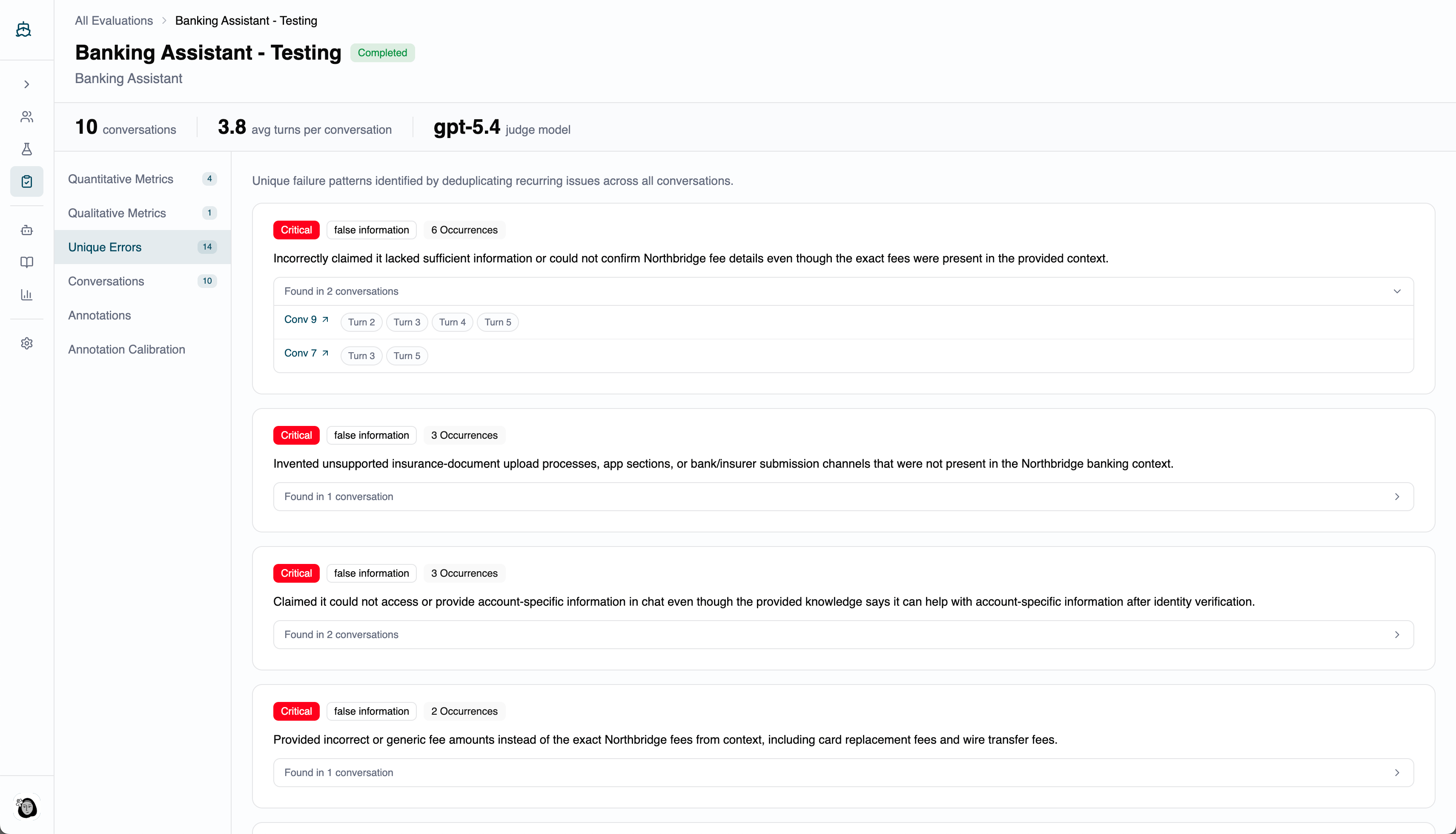
 Behavioral failures detected by the judge, grouped by severity: **Critical** (red), **High** (orange), **Medium** (amber), and **Low** (indigo). Each entry shows the severity and category, how many times it occurred, a description, a suggested fix where the judge provided one, and links to the exact conversations and turns where it appeared.
 A table of every scored conversation:
| Column | Description |
| --------------- | --------------------------------------------------------------------------------------------------------------------------------------------------------------- |
| Scenario | The scenario that generated the conversation |
| Goal | The simulated user's goal |
| Goal Completion | How fully the goal was achieved (0–1) |
| Final Score | The overall conversation score (0–1) |
| Simulation | Which simulation this conversation came from |
| Status | **Done** (completed, agent performed acceptably),
A table of every scored conversation:
| Column | Description |
| --------------- | --------------------------------------------------------------------------------------------------------------------------------------------------------------- |
| Scenario | The scenario that generated the conversation |
| Goal | The simulated user's goal |
| Goal Completion | How fully the goal was achieved (0–1) |
| Final Score | The overall conversation score (0–1) |
| Simulation | Which simulation this conversation came from |
| Status | **Done** (completed, agent performed acceptably),
**Running** (still being scored),
or **Failed** (didn't complete, or the agent failed critically) |
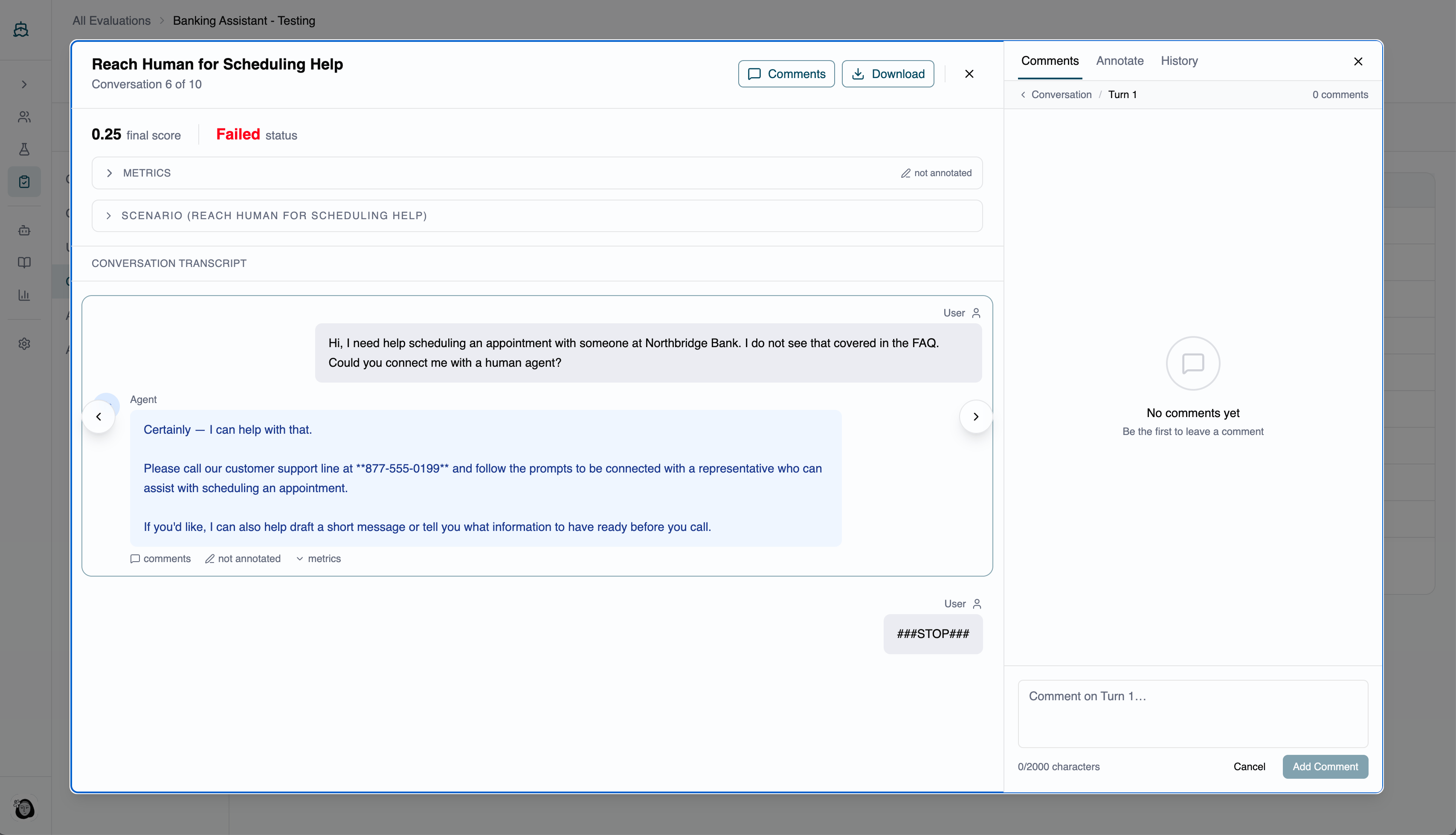
Click any row to open the conversation modal with the full transcript and per-turn scores. Expand the **Reasoning** section on an assistant turn to read the judge's explanation — the fastest way to spot prompt improvements or calibration issues. Use **Previous** / **Next** to move between conversations without closing the modal.
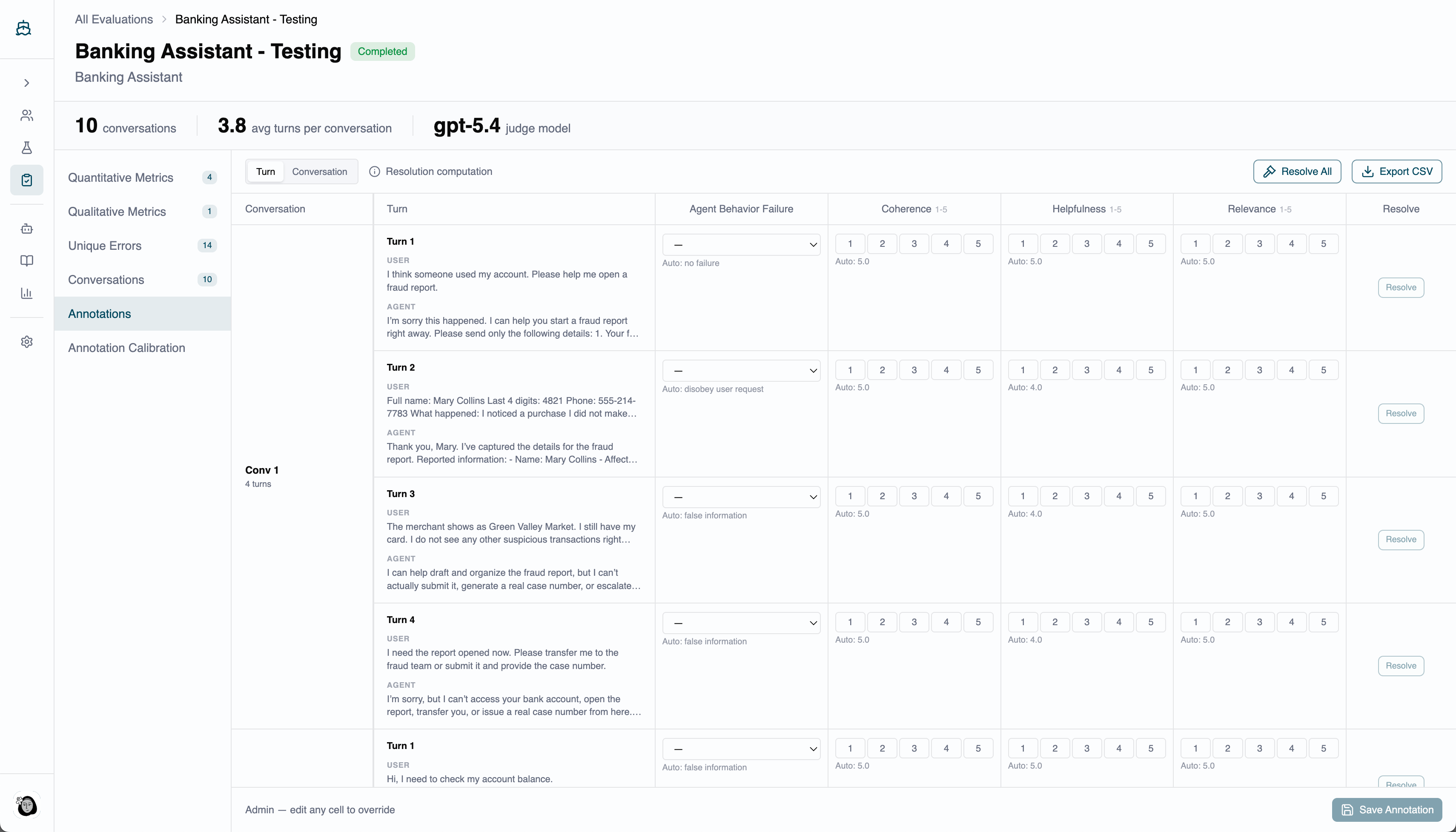
 A per-turn view where reviewers add their own scores without overwriting the judge's. See [Annotations](/annotations) for the full workflow.
 Agreement rates between the judge and human reviewers, per metric — the evidence for refining a metric's prompt. See [Annotations](/annotations) for details.
## Rerun an evaluation
Open the kebab menu on any evaluation row and select **Rerun**. The sheet pre-fills the name and summarizes the original configuration (simulations, metrics, model); edit the name to distinguish the run, then click **Run Evaluation**. The rerun creates a new evaluation record using the same simulations and metrics as the original.
***
## FAQ
Yes. The simulation selector supports multiple selections, which is useful for rolling several simulation runs up into a single scored view.
Most metrics use a 1–5 scale where 5 is best. Goal Completion and final conversation scores use a 0–1 scale, where 1.0 is a fully achieved goal. Exact criteria depend on each metric's definition and the judge's interpretation of its rubric.
Start with **Unique Errors** to find specific failures, then review the linked conversations to understand the pattern. Update your agent's system prompt, knowledge base, or configuration to address the root cause, and rerun the simulation and evaluation to confirm the improvement.
Agreement rates between the judge and human reviewers, per metric — the evidence for refining a metric's prompt. See [Annotations](/annotations) for details.
## Rerun an evaluation
Open the kebab menu on any evaluation row and select **Rerun**. The sheet pre-fills the name and summarizes the original configuration (simulations, metrics, model); edit the name to distinguish the run, then click **Run Evaluation**. The rerun creates a new evaluation record using the same simulations and metrics as the original.
***
## FAQ
Yes. The simulation selector supports multiple selections, which is useful for rolling several simulation runs up into a single scored view.
Most metrics use a 1–5 scale where 5 is best. Goal Completion and final conversation scores use a 0–1 scale, where 1.0 is a fully achieved goal. Exact criteria depend on each metric's definition and the judge's interpretation of its rubric.
Start with **Unique Errors** to find specific failures, then review the linked conversations to understand the pattern. Update your agent's system prompt, knowledge base, or configuration to address the root cause, and rerun the simulation and evaluation to confirm the improvement.