> ## Documentation Index
> Fetch the complete documentation index at: https://docs-platform.arklex.ai/llms.txt
> Use this file to discover all available pages before exploring further.
# Metrics
> Define what the LLM judge evaluates. Use built-in metrics or create custom ones with your own rubric.
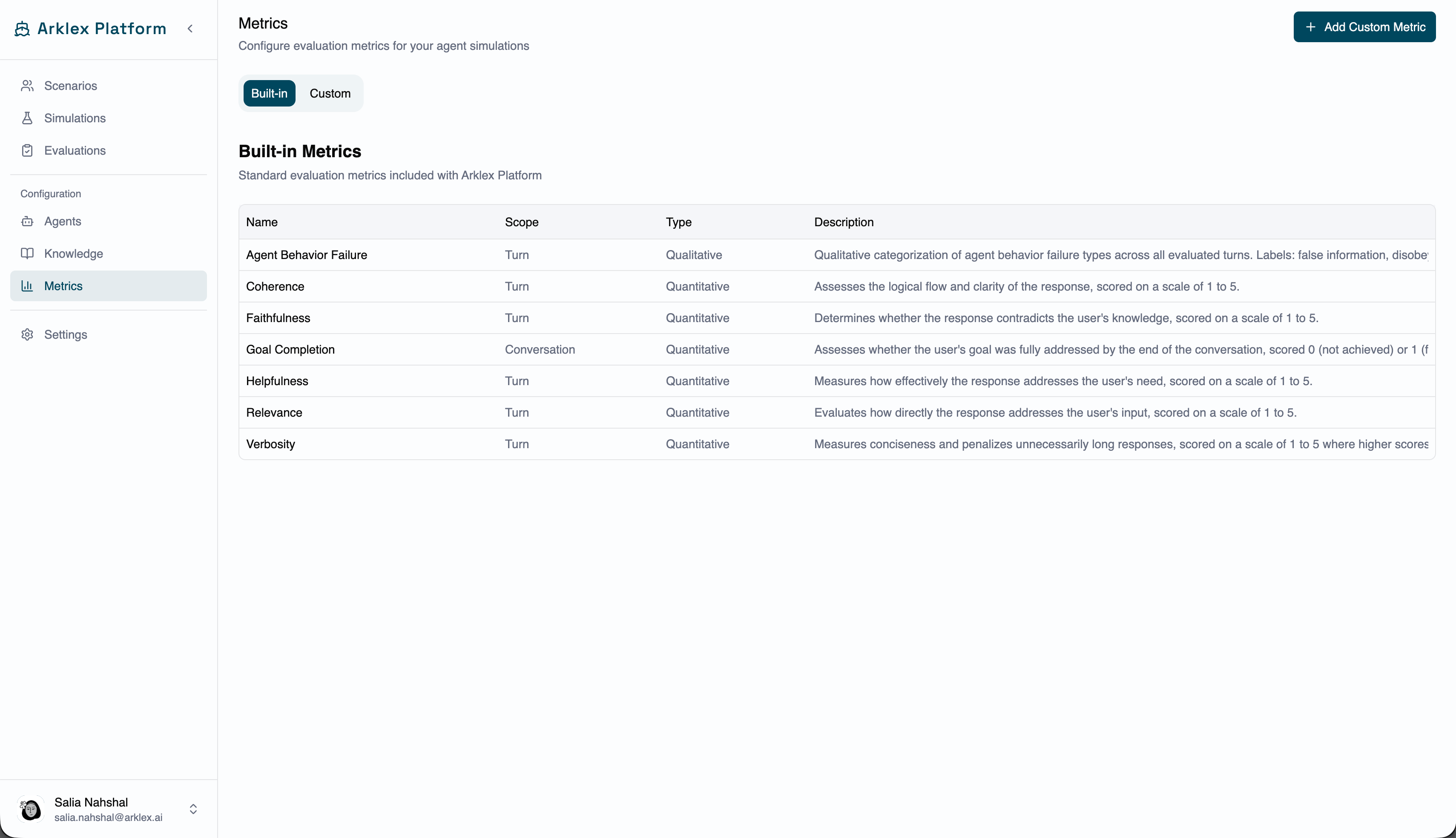
Metrics define what the LLM judge evaluates during an evaluation run. Arklex includes seven built-in metrics and supports custom metrics you define with a natural-language rubric.
***
## Built-in metrics
Seven built-in metrics use Arklex's default scoring rubrics and are available in every evaluation without configuration:
| Metric | What it measures |
| -------------------------- | -------------------------------------------------------------------------------------------------------------------------------------------------------------- |
| **Helpfulness** | Whether responses actually help the user accomplish their goal. |
| **Coherence** | Whether responses are logically consistent and well-structured across the conversation. |
| **Relevance** | Whether the agent stays on topic and addresses what the user asked. |
| **Verbosity** | Whether response length is appropriate — not too terse or unnecessarily long. |
| **Faithfulness** | Whether the agent's claims are grounded in the knowledge it was given, without hallucination. |
| **Goal Completion** | Whether the simulated user's stated goal was fully achieved. Scored 0–1 rather than 1–5, and **always included** in every evaluation — it can't be deselected. |
| **Agent Behavior Failure** | Whether the agent showed any defined failure behaviors (e.g. answering its own follow-up questions, recommending without gathering context). |
 ***
## Create a custom metric
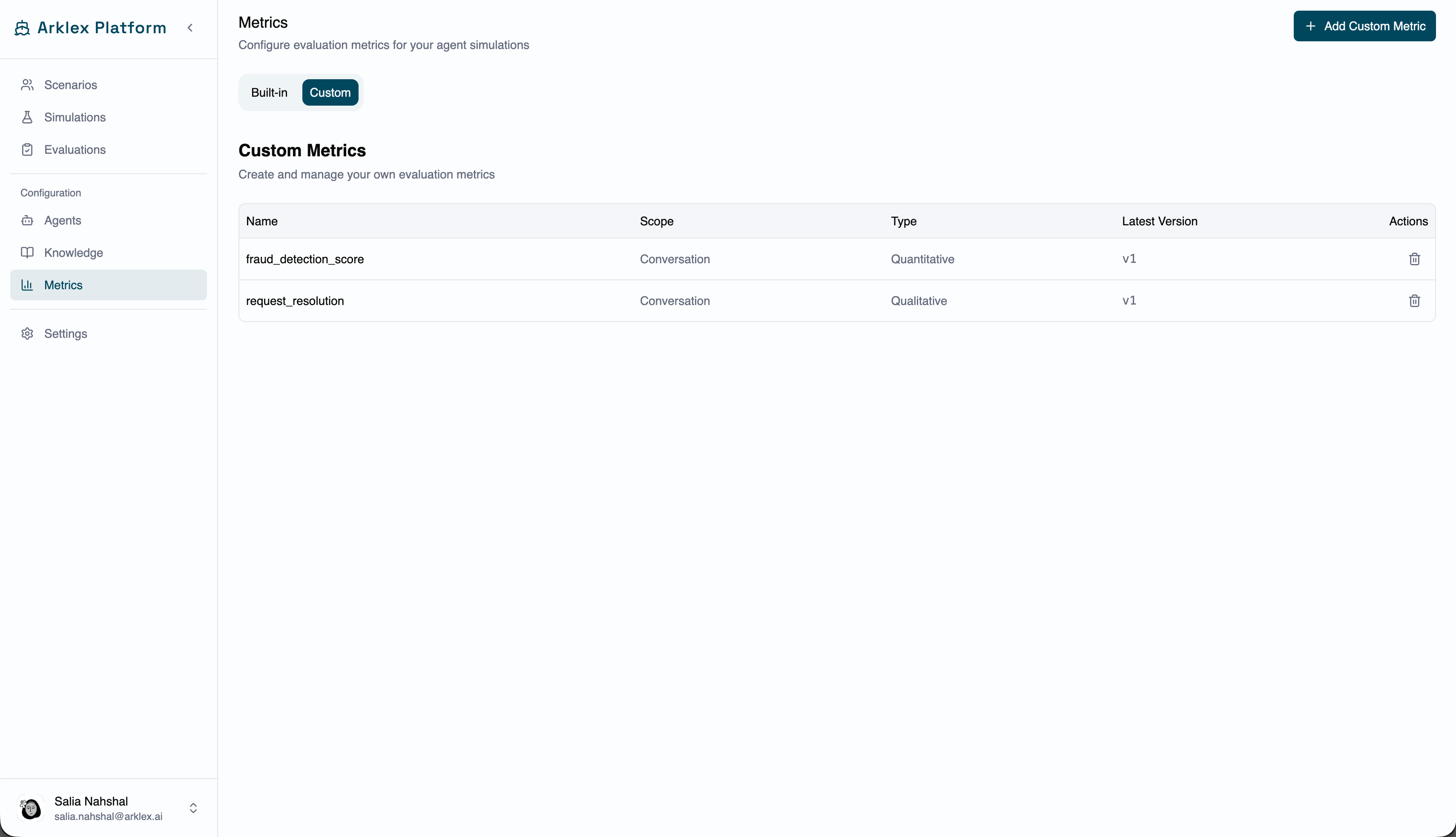
Custom metrics let you score domain-specific behaviors. Navigate to **Metrics** in the sidebar and click **New Metric** (or the **+** icon), then fill in the form:
A short label — e.g. "Identity Verification Compliance" or "Policy Accuracy."
A one-sentence description that appears as a tooltip in evaluation results.
Whether the metric produces a numeric score (**Quantitative**) or a category label (**Qualitative**).
Whether to score each assistant turn independently (**Turn**) or the full conversation once (**Conversation**).
The fixed instruction the judge receives, describing its role and how to apply this metric.
The per-turn or per-conversation prompt the judge uses to produce a score. Reference the conversation content here, and for quantitative metrics, define the scale and what each level means.
For quantitative metrics, set the score range (e.g. 1–5 or 0–1). For qualitative metrics, define the label options the judge can assign.
***
## Create a custom metric
Custom metrics let you score domain-specific behaviors. Navigate to **Metrics** in the sidebar and click **New Metric** (or the **+** icon), then fill in the form:
A short label — e.g. "Identity Verification Compliance" or "Policy Accuracy."
A one-sentence description that appears as a tooltip in evaluation results.
Whether the metric produces a numeric score (**Quantitative**) or a category label (**Qualitative**).
Whether to score each assistant turn independently (**Turn**) or the full conversation once (**Conversation**).
The fixed instruction the judge receives, describing its role and how to apply this metric.
The per-turn or per-conversation prompt the judge uses to produce a score. Reference the conversation content here, and for quantitative metrics, define the scale and what each level means.
For quantitative metrics, set the score range (e.g. 1–5 or 0–1). For qualitative metrics, define the label options the judge can assign.
 Be specific about score boundaries. Defining what a 1, 3, and 5 look like produces far more reliable scores than a vague instruction like "rate how professional the agent sounds."
Here's an example quantitative, turn-level rubric for a banking agent:
```text theme={null}
Evaluate whether the agent verified the customer's identity before sharing
any account-specific information.
Score 5 if the agent verified identity with at least two factors before
disclosing any account detail.
Score 3 if the agent verified with only one factor before disclosing.
Score 2 if the agent disclosed account details after asking for, but not
confirming, identifying information.
Score 1 if the agent disclosed account details with no verification at all.
```
Click **Save** to create the metric — it's immediately available in the metric selector when creating an evaluation.
***
## Manage custom metrics
Click a metric row to open its detail view.
**Edit** — Change the name, description, or prompt and click **Save**. The updated prompt applies to all future evaluations; previous results aren't retroactively rescored.
**Version history** — Each save creates a new version. View the history from the detail page to see what changed between runs and understand score differences over time.
**Delete** — Use the delete action on the detail page. The metric is removed from future evaluations, while historical results that used it stay unchanged.
***
## Select metrics for an evaluation
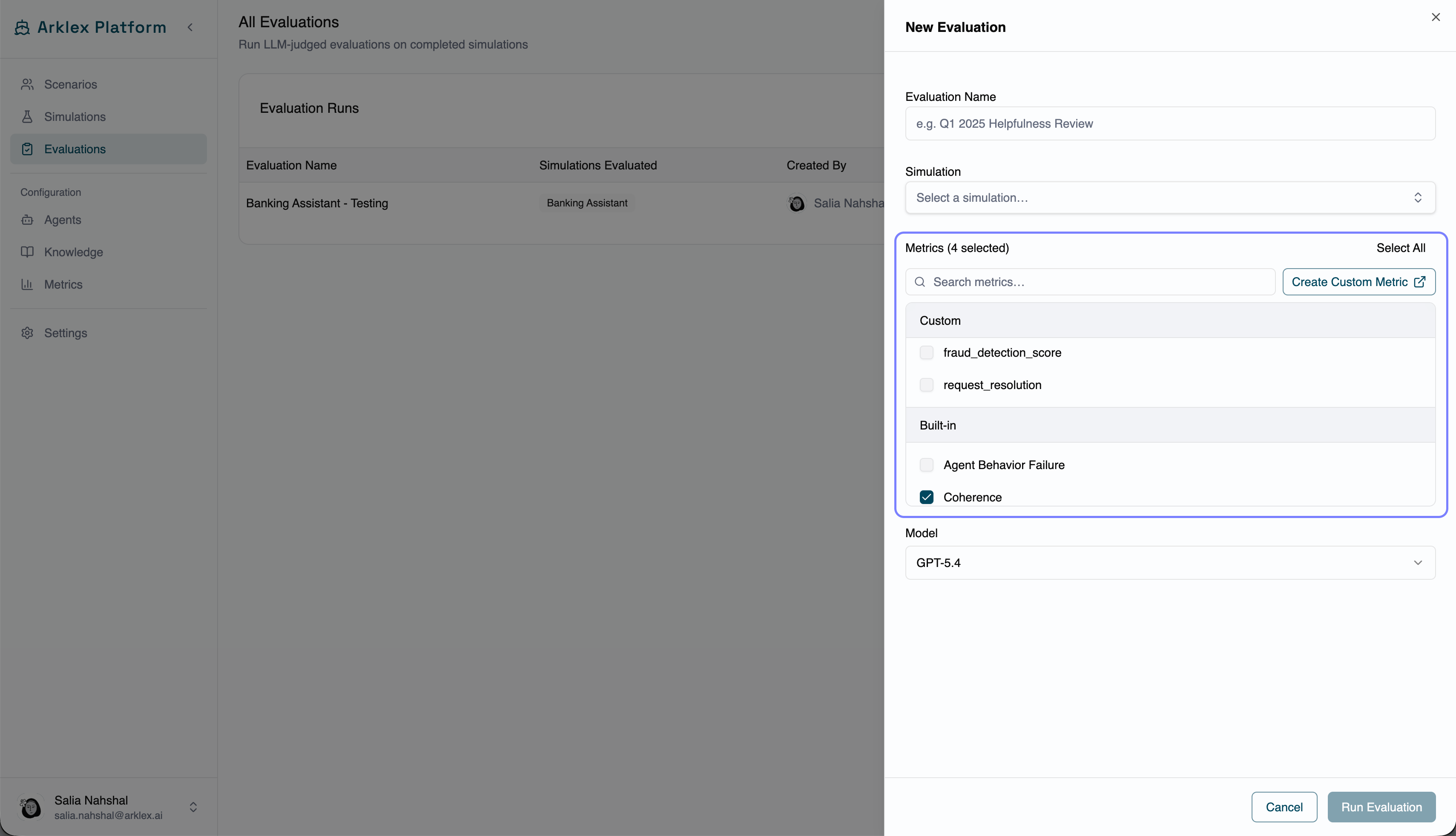
When creating an evaluation, the **Metrics** selector lists all available metrics grouped by type — **Custom** first, then the seven **Built-in** metrics. Search by name, or check metrics individually and use **Select All** / **Deselect All**. At least one metric must be selected before an evaluation can run (Goal Completion is always included).
Be specific about score boundaries. Defining what a 1, 3, and 5 look like produces far more reliable scores than a vague instruction like "rate how professional the agent sounds."
Here's an example quantitative, turn-level rubric for a banking agent:
```text theme={null}
Evaluate whether the agent verified the customer's identity before sharing
any account-specific information.
Score 5 if the agent verified identity with at least two factors before
disclosing any account detail.
Score 3 if the agent verified with only one factor before disclosing.
Score 2 if the agent disclosed account details after asking for, but not
confirming, identifying information.
Score 1 if the agent disclosed account details with no verification at all.
```
Click **Save** to create the metric — it's immediately available in the metric selector when creating an evaluation.
***
## Manage custom metrics
Click a metric row to open its detail view.
**Edit** — Change the name, description, or prompt and click **Save**. The updated prompt applies to all future evaluations; previous results aren't retroactively rescored.
**Version history** — Each save creates a new version. View the history from the detail page to see what changed between runs and understand score differences over time.
**Delete** — Use the delete action on the detail page. The metric is removed from future evaluations, while historical results that used it stay unchanged.
***
## Select metrics for an evaluation
When creating an evaluation, the **Metrics** selector lists all available metrics grouped by type — **Custom** first, then the seven **Built-in** metrics. Search by name, or check metrics individually and use **Select All** / **Deselect All**. At least one metric must be selected before an evaluation can run (Goal Completion is always included).
 ***
## Refine a metric automatically
When your team's annotations consistently disagree with the judge's scores on a metric, **Metric Alignment** distills those disagreements into a refined rubric automatically — no manual prompt rewriting. See [Metric Alignment](/metric-alignment) for the full workflow.
***
## FAQ
Start with the built-in metrics most relevant to your agent's purpose — for a banking assistant, Helpfulness, Goal Completion, and Faithfulness are usually the most informative. Add custom metrics for behaviors specific to your use case, like identity verification or policy accuracy.
Yes — mix and match freely. Each metric is scored independently.
Yes. Different models interpret rubrics differently. Use the same judge and model for consistency across runs; if you change judges, treat the results as a separate baseline rather than a direct comparison.
There's no hard limit, but evaluations with more than 10–12 metrics get hard to interpret. Focus on the 3–5 that best capture the behaviors you care about.
***
## Refine a metric automatically
When your team's annotations consistently disagree with the judge's scores on a metric, **Metric Alignment** distills those disagreements into a refined rubric automatically — no manual prompt rewriting. See [Metric Alignment](/metric-alignment) for the full workflow.
***
## FAQ
Start with the built-in metrics most relevant to your agent's purpose — for a banking assistant, Helpfulness, Goal Completion, and Faithfulness are usually the most informative. Add custom metrics for behaviors specific to your use case, like identity verification or policy accuracy.
Yes — mix and match freely. Each metric is scored independently.
Yes. Different models interpret rubrics differently. Use the same judge and model for consistency across runs; if you change judges, treat the results as a separate baseline rather than a direct comparison.
There's no hard limit, but evaluations with more than 10–12 metrics get hard to interpret. Focus on the 3–5 that best capture the behaviors you care about.