> ## Documentation Index
> Fetch the complete documentation index at: https://docs-platform.arklex.ai/llms.txt
> Use this file to discover all available pages before exploring further.
# Scenarios
> Define the simulated users that interact with your agent during a simulation.
Scenarios define the simulated users that interact with your agent during a simulation. Each scenario specifies a user **goal**, a **profile**, and a set of **knowledge** the simulated user can draw on during the conversation.
New here? The [Quickstart](/quickstart) walks you through generating your first scenarios end to end. This page is the full reference for every mode and field.
***
## Scenario groups
Scenarios are organized into **scenario groups** — a logical collection of related scenarios, such as all scenarios for a product category, support topic, or user segment (e.g. a "Core Support" group covering balances, transfers, and card issues).
Navigate to **Scenarios** in the sidebar to see every group in your organization. Click a group to open it and view the scenarios it contains.
You create a group **before** adding any scenarios to it: every way of adding scenarios — generating, importing, or saving — targets a group that already exists. Create a group with a name and an optional description, then open it to start adding scenarios.
***
## Create scenarios
There are four ways to add scenarios. Pick based on how much you have to start from:
| Mode | Best when | Output |
| ----------------------------- | --------------------------------------------- | ------------------------------------- |
| **Create a Scenario** | You want one carefully crafted scenario | 1 scenario |
| **Generate at Scale** | You want broad coverage from a description | Up to 20 scenarios |
| **From Conversation History** | You have real conversation logs to learn from | Scenarios matching real user patterns |
| **Import a File** | You already have scenarios in a file | Your existing scenarios |
Open the group you want to add to (creating one first if you haven't yet), click **Add Scenarios**, then choose a path. Whichever mode you pick saves into that group.
### Create a Scenario
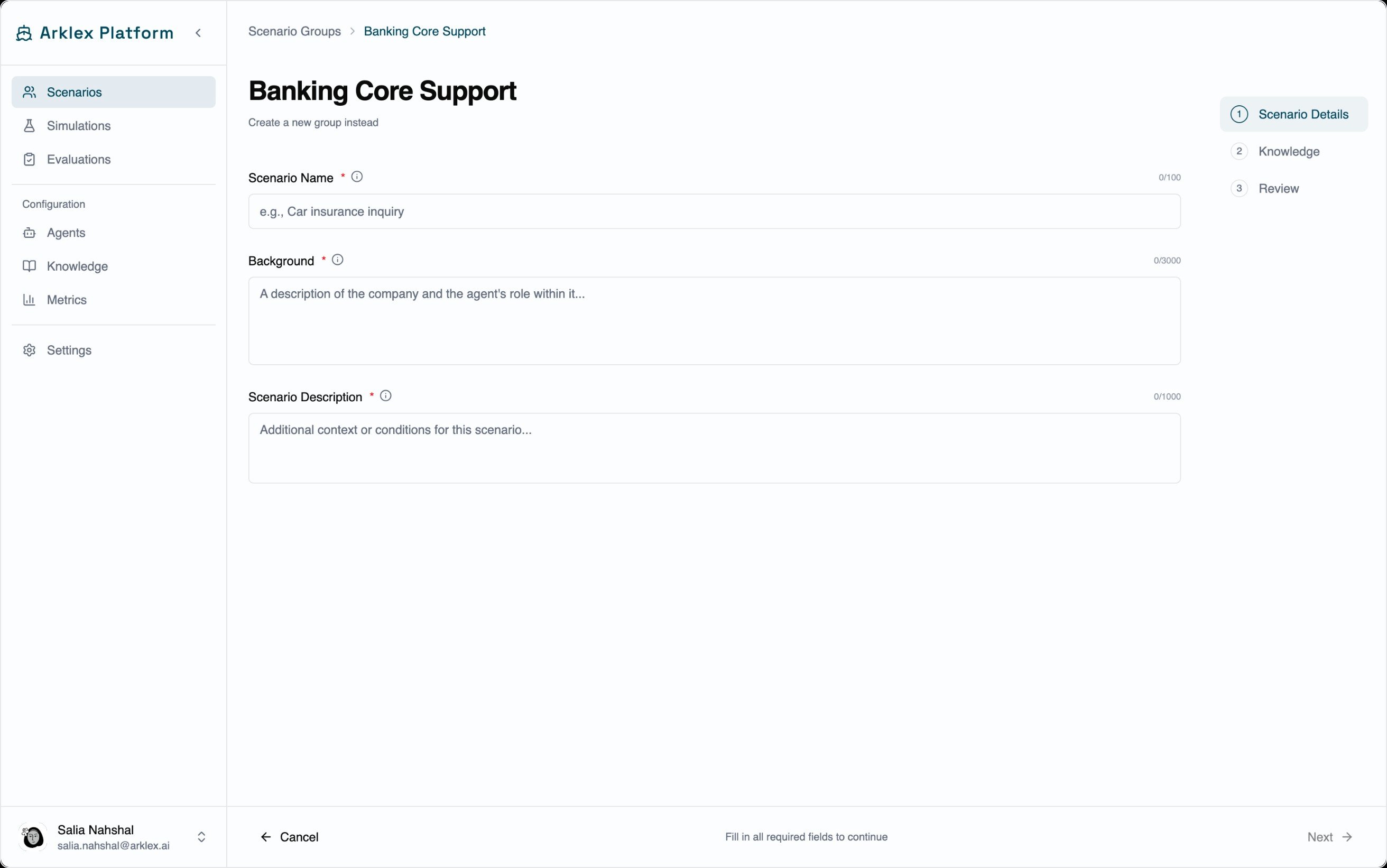
Create one scenario at a time, in three steps.
Enter a scenario name, a background description of the company and agent context, a user profile describing the simulated user, and the specific goal they're trying to accomplish.
Attach up to **10** knowledge items from the Knowledge section. These give the simulated user access to specific documents or web content during the conversation.
Preview the scenario, make any final edits, and save it to the group.
 ### Generate at Scale
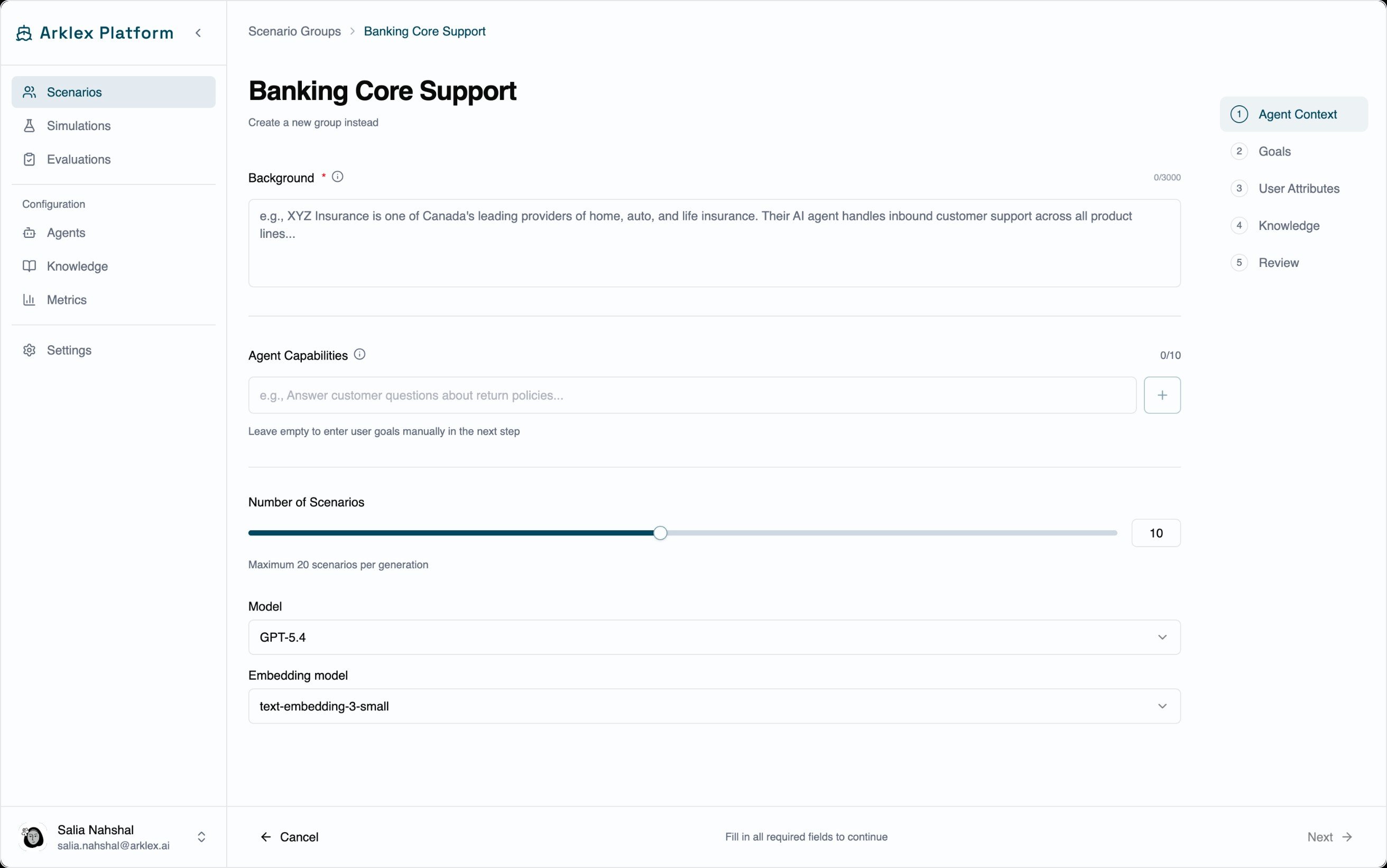
Generate up to **20** scenarios at once by defining a matrix of user attributes.
Describe the company, the agent's role, and the use case. Arklex uses this to auto-detect the domain and pre-fill relevant demographic and business attribute fields.
Define up to 10 user goals (capped at the number of scenarios you want to generate) — the tasks or intents your simulated users will pursue.
Configure the attributes that vary across generated personas, organized into tabs: Demographics, Business, Psychographics, and a Custom tab. Each attribute takes a comma-separated list of values, and Arklex draws from these to generate diverse personas.
Attach up to **100** knowledge items to ground the scenarios in real content. At least one knowledge source is required.
Preview the generated set, edit individual scenarios, and save the group.
### Generate at Scale
Generate up to **20** scenarios at once by defining a matrix of user attributes.
Describe the company, the agent's role, and the use case. Arklex uses this to auto-detect the domain and pre-fill relevant demographic and business attribute fields.
Define up to 10 user goals (capped at the number of scenarios you want to generate) — the tasks or intents your simulated users will pursue.
Configure the attributes that vary across generated personas, organized into tabs: Demographics, Business, Psychographics, and a Custom tab. Each attribute takes a comma-separated list of values, and Arklex draws from these to generate diverse personas.
Attach up to **100** knowledge items to ground the scenarios in real content. At least one knowledge source is required.
Preview the generated set, edit individual scenarios, and save the group.
 ### From Conversation History
Available only where the **Adaptive Scenarios** feature is enabled. If you don't see it in the picker, contact your account team.
Generate scenarios grounded in real conversation data. Instead of describing your use case from scratch, you upload past conversations and Arklex discovers user attributes from them.
Upload a file of past conversations (e.g. exported chat logs). Arklex extracts user attribute patterns from it.
The run surfaces demographic, behavioral, and domain-specific attributes observed across the uploaded conversations. Review and edit the list before generating.
Choose how many scenarios to generate. Arklex uses the discovered attributes as the persona matrix, producing scenarios that reflect the mix of real users in your data.
Preview the scenarios, make final edits, and save to the group.
This mode is most useful once you have production traffic and want your test scenarios to reflect the actual variety of users interacting with your agent.
### Import a File
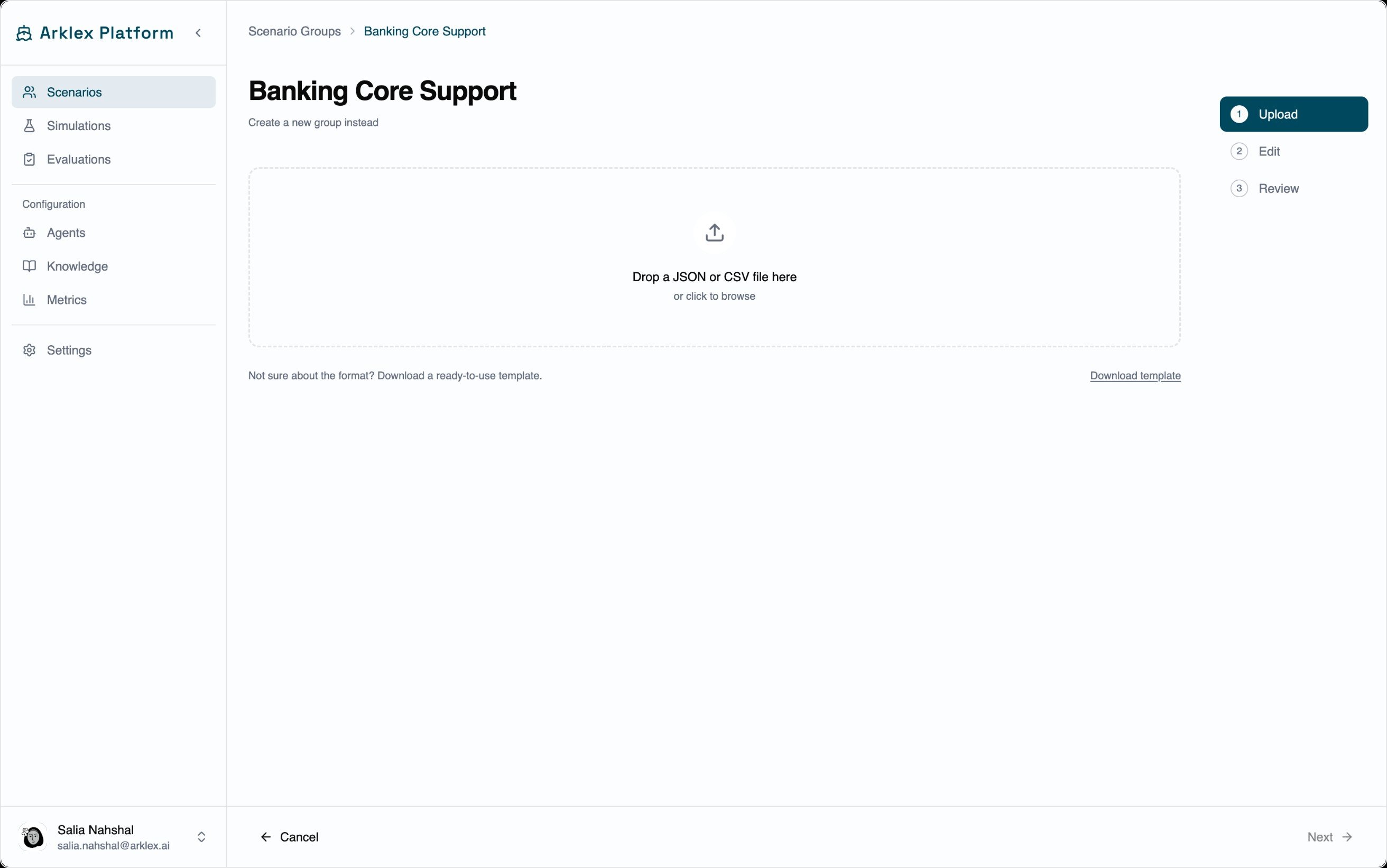
Choose **Import a File** to upload a JSON or CSV file of existing scenarios. The wizard parses the file, lets you review and map fields, and adds the scenarios to the current group.
### From Conversation History
Available only where the **Adaptive Scenarios** feature is enabled. If you don't see it in the picker, contact your account team.
Generate scenarios grounded in real conversation data. Instead of describing your use case from scratch, you upload past conversations and Arklex discovers user attributes from them.
Upload a file of past conversations (e.g. exported chat logs). Arklex extracts user attribute patterns from it.
The run surfaces demographic, behavioral, and domain-specific attributes observed across the uploaded conversations. Review and edit the list before generating.
Choose how many scenarios to generate. Arklex uses the discovered attributes as the persona matrix, producing scenarios that reflect the mix of real users in your data.
Preview the scenarios, make final edits, and save to the group.
This mode is most useful once you have production traffic and want your test scenarios to reflect the actual variety of users interacting with your agent.
### Import a File
Choose **Import a File** to upload a JSON or CSV file of existing scenarios. The wizard parses the file, lets you review and map fields, and adds the scenarios to the current group.
 ***
## Drafts
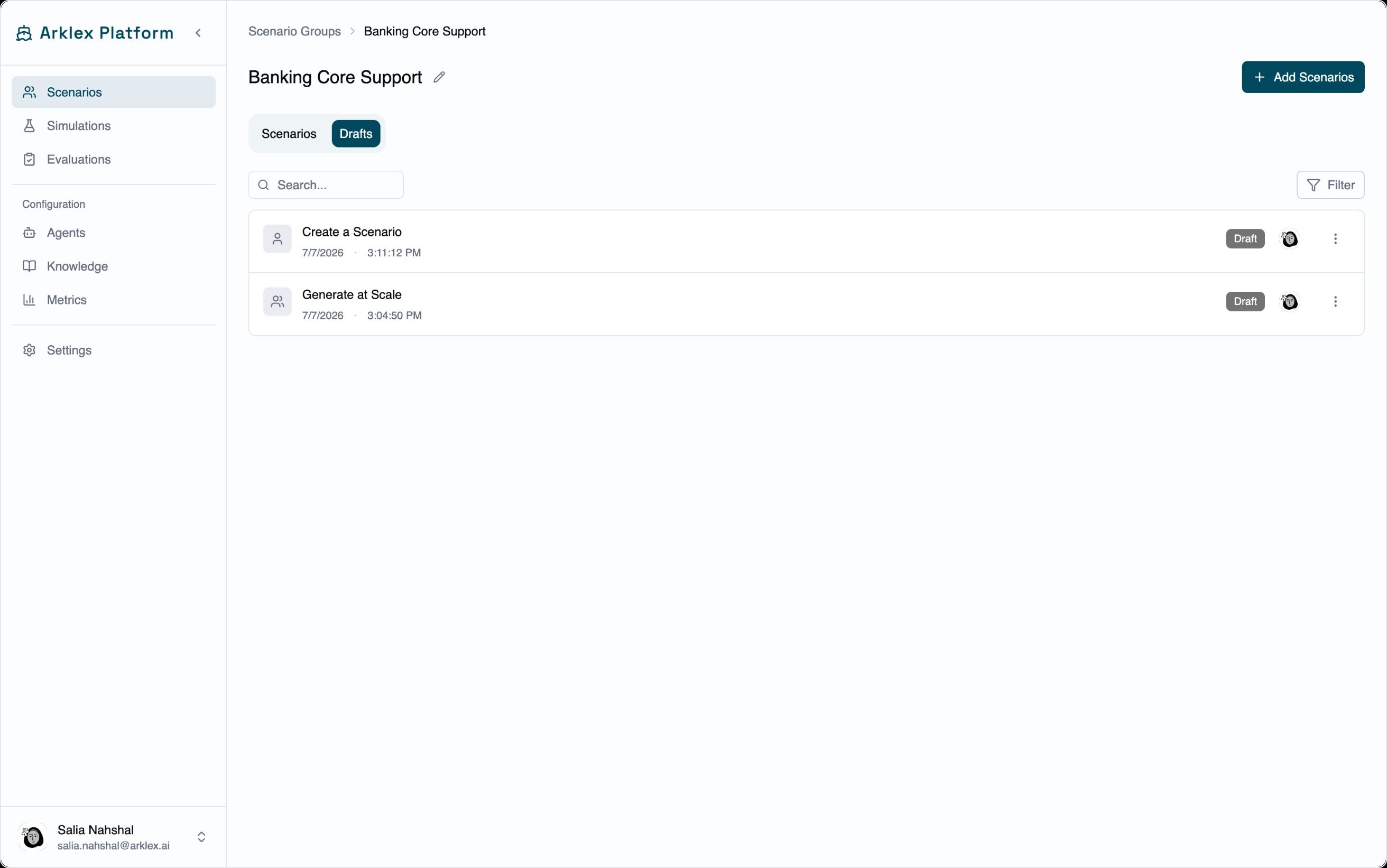
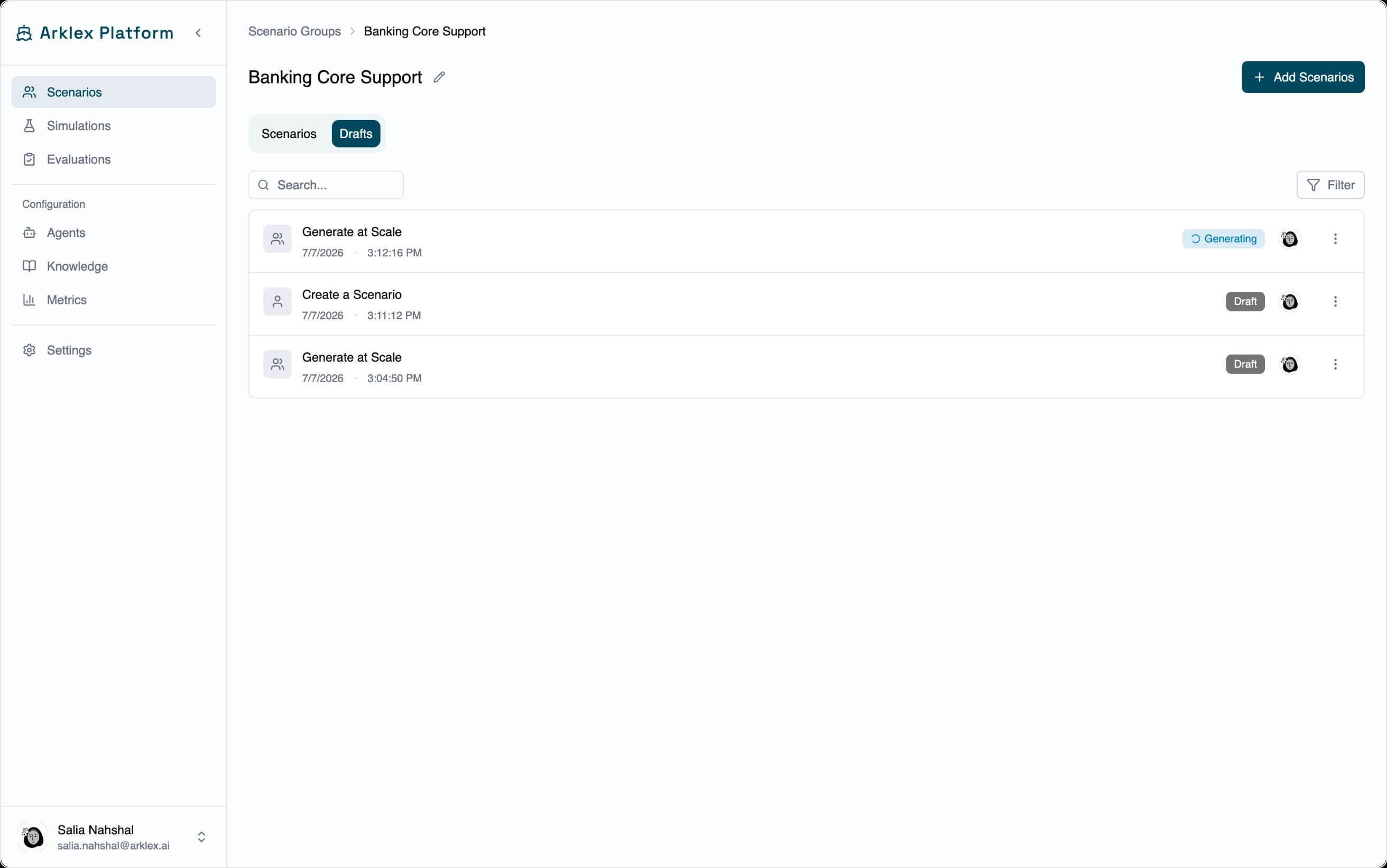
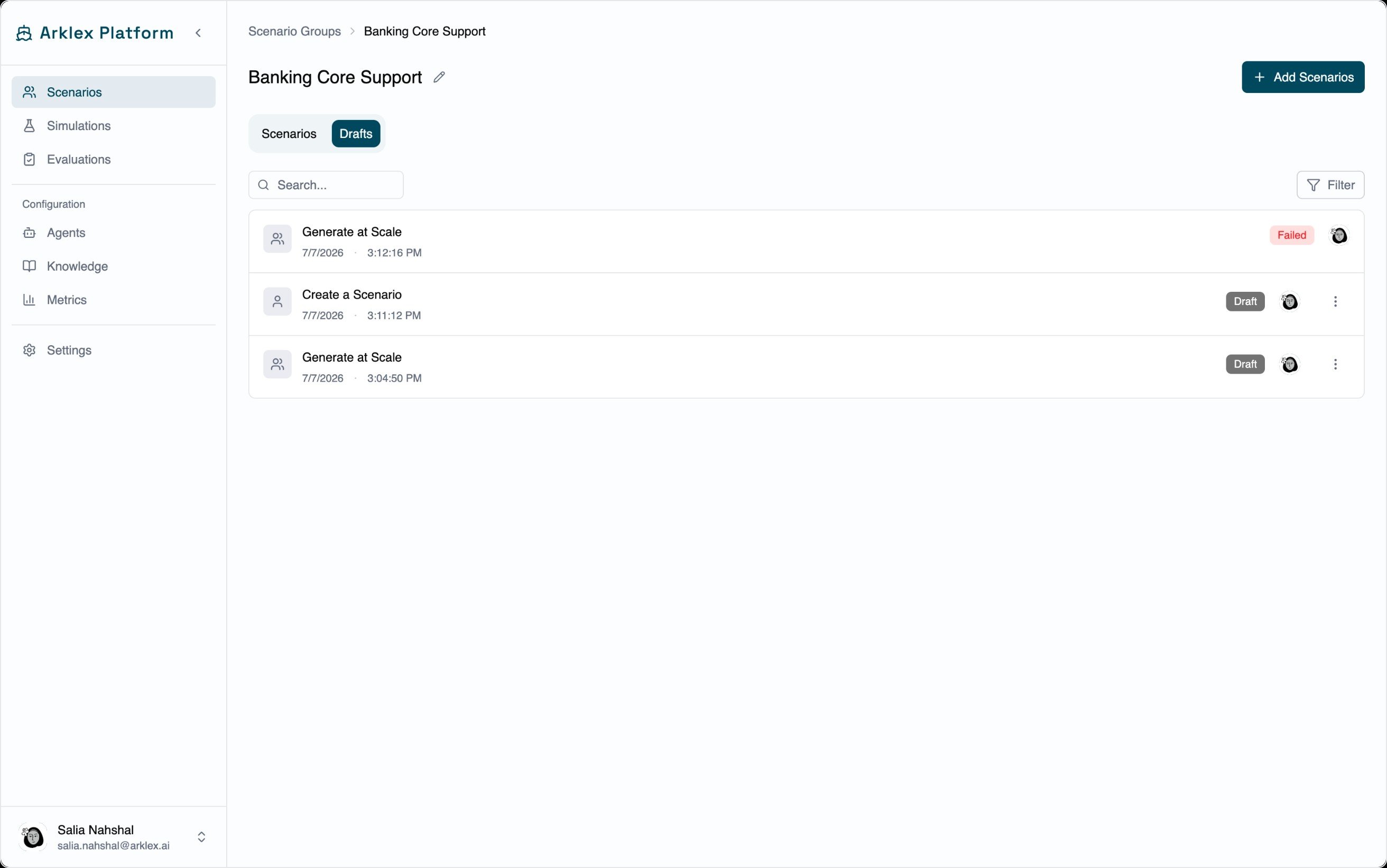
Generating scenarios is a multi-step wizard, and your progress is saved as a **draft** as you go — so you can leave and pick up exactly where you left off. Drafts belong to a group, and you can keep several in progress in the same group at once.
Open a group's **Drafts** tab to see them. Each draft shows its mode (Create a Scenario, Generate at Scale, or From Conversation History), a status badge, and how many scenarios it will produce:
***
## Drafts
Generating scenarios is a multi-step wizard, and your progress is saved as a **draft** as you go — so you can leave and pick up exactly where you left off. Drafts belong to a group, and you can keep several in progress in the same group at once.
Open a group's **Drafts** tab to see them. Each draft shows its mode (Create a Scenario, Generate at Scale, or From Conversation History), a status badge, and how many scenarios it will produce:
 | Status | Meaning |
| ----------------------- | -------------------------------------------------------------------- |
| **Draft** | Still being configured — resume the wizard to continue. |
| **Queued / Generating** | A Generate at Scale or From Conversation History run is in progress. |
| **Failed** | The run errored — discard it and start over. |
* **Continue** — click a draft to reopen the wizard at your last step.
* **Delete** — remove a draft you no longer need. Available for drafts and failed runs.
* **Cancel** — stop a run that's queued or generating.
A group can't be deleted while it has a draft or an in-progress (queued or generating) generation — cancel those first. Completed and failed runs don't block deletion.
## Anatomy of a scenario
Every scenario contains three parts:
| Field | Description |
| ------------------ | --------------------------------------------------------------------------------------------------------------------------------------------------------------------------------- |
| **Goal** | What the simulated user is trying to accomplish, written from their perspective — e.g. "You think there's a charge on your account you don't recognize and you want it reversed." |
| **Profile** | A persona that shapes how the user communicates: their background, knowledge level, tone, and any relevant constraints. |
| **Knowledge base** | Documents the simulated user can reference during the conversation. Attach files from the Knowledge section to give the user specific context to draw on. |
The knowledge base grounds what the **simulated user** knows and asks about — not the agent's answers. Attaching the same source material the agent uses is a good way to test whether the agent's responses stay faithful to it.
***
## Manage scenarios
**View** — Click a scenario row within a group to see its goal, profile, and attached knowledge documents.
**Edit** — Open the scenario and click **Edit**. Changes save per-field, and **versions** are tracked so you can see what changed between simulation runs.
**Delete** — Open the scenario and use the delete action. Scenarios used in completed simulations remain accessible in those historical records even after deletion.
***
## Select scenarios for a simulation
When creating a simulation, the **Scenarios** field lists all available scenarios grouped by scenario group. You can:
* Select individual scenarios with their checkbox.
* Select every scenario in a group with **Select Group**.
* Select all scenarios across all groups with **Select All**.
* Preview a scenario's goal, profile, and knowledge base by clicking its name or the chevron icon.
Use the search box and the **Created by me** filter to narrow a long list.
***
## FAQ
Generate at Scale supports up to 20 scenarios per run. For a first pass, 10–15 scenarios covering your most important user intents is a good starting point — you can always add more groups or run additional rounds.
Start with 5–15 scenarios covering your most important intents. Once you've reviewed the initial results, run a new simulation with a broader set.
Yes. Every step of the generation wizard is saved as a draft, so you can close it and resume later from the group's **Drafts** tab. You can keep several drafts in progress in the same group, and discard a draft (or a failed run) from that tab when you no longer need it.
Specific enough to drive a focused conversation, but not so prescriptive that it removes all variation:
* **Too vague:** "Talk to the agent about your account."
* **Too prescriptive:** "Say 'I want to dispute charge #12345 on account #67890 from 2024-01-15 and I expect a refund within 3 days.'"
* **Good:** "You spotted a \$240 charge you don't recognize on last month's statement and want it investigated and refunded."
Yes. Attaching a document to a scenario gives the simulated user knowledge of its contents, which is useful for testing whether the agent's responses align with its source material — especially relevant for faithfulness and relevance evaluations.
Each time you edit and save a scenario, a new version is created. Simulations record which version of each scenario they used, so historical results stay accurate even if the scenario changes later.
| Status | Meaning |
| ----------------------- | -------------------------------------------------------------------- |
| **Draft** | Still being configured — resume the wizard to continue. |
| **Queued / Generating** | A Generate at Scale or From Conversation History run is in progress. |
| **Failed** | The run errored — discard it and start over. |
* **Continue** — click a draft to reopen the wizard at your last step.
* **Delete** — remove a draft you no longer need. Available for drafts and failed runs.
* **Cancel** — stop a run that's queued or generating.
A group can't be deleted while it has a draft or an in-progress (queued or generating) generation — cancel those first. Completed and failed runs don't block deletion.
## Anatomy of a scenario
Every scenario contains three parts:
| Field | Description |
| ------------------ | --------------------------------------------------------------------------------------------------------------------------------------------------------------------------------- |
| **Goal** | What the simulated user is trying to accomplish, written from their perspective — e.g. "You think there's a charge on your account you don't recognize and you want it reversed." |
| **Profile** | A persona that shapes how the user communicates: their background, knowledge level, tone, and any relevant constraints. |
| **Knowledge base** | Documents the simulated user can reference during the conversation. Attach files from the Knowledge section to give the user specific context to draw on. |
The knowledge base grounds what the **simulated user** knows and asks about — not the agent's answers. Attaching the same source material the agent uses is a good way to test whether the agent's responses stay faithful to it.
***
## Manage scenarios
**View** — Click a scenario row within a group to see its goal, profile, and attached knowledge documents.
**Edit** — Open the scenario and click **Edit**. Changes save per-field, and **versions** are tracked so you can see what changed between simulation runs.
**Delete** — Open the scenario and use the delete action. Scenarios used in completed simulations remain accessible in those historical records even after deletion.
***
## Select scenarios for a simulation
When creating a simulation, the **Scenarios** field lists all available scenarios grouped by scenario group. You can:
* Select individual scenarios with their checkbox.
* Select every scenario in a group with **Select Group**.
* Select all scenarios across all groups with **Select All**.
* Preview a scenario's goal, profile, and knowledge base by clicking its name or the chevron icon.
Use the search box and the **Created by me** filter to narrow a long list.
***
## FAQ
Generate at Scale supports up to 20 scenarios per run. For a first pass, 10–15 scenarios covering your most important user intents is a good starting point — you can always add more groups or run additional rounds.
Start with 5–15 scenarios covering your most important intents. Once you've reviewed the initial results, run a new simulation with a broader set.
Yes. Every step of the generation wizard is saved as a draft, so you can close it and resume later from the group's **Drafts** tab. You can keep several drafts in progress in the same group, and discard a draft (or a failed run) from that tab when you no longer need it.
Specific enough to drive a focused conversation, but not so prescriptive that it removes all variation:
* **Too vague:** "Talk to the agent about your account."
* **Too prescriptive:** "Say 'I want to dispute charge #12345 on account #67890 from 2024-01-15 and I expect a refund within 3 days.'"
* **Good:** "You spotted a \$240 charge you don't recognize on last month's statement and want it investigated and refunded."
Yes. Attaching a document to a scenario gives the simulated user knowledge of its contents, which is useful for testing whether the agent's responses align with its source material — especially relevant for faithfulness and relevance evaluations.
Each time you edit and save a scenario, a new version is created. Simulations record which version of each scenario they used, so historical results stay accurate even if the scenario changes later.