

New here? The Quickstart walks you through running your first simulation end to end. This page is the full reference for every option.
See your simulations
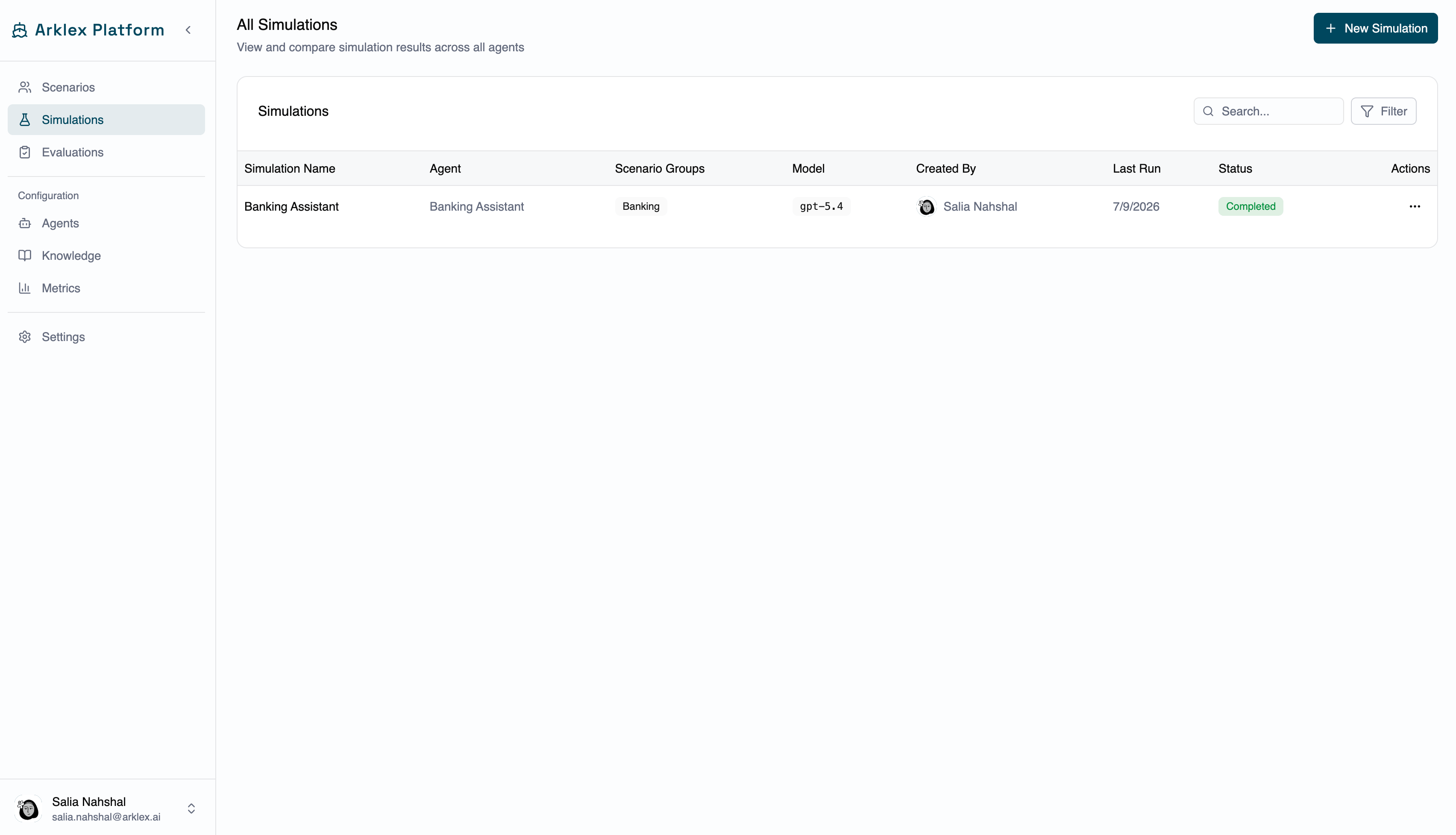
Navigate to Simulations in the sidebar to see every simulation in your organization. Each row shows the simulation name, the agent it ran against, the scenario groups and model it used, who created it, when it last ran, and its current status.
Use Filter to narrow by agent, creator, or status, and Search to filter by simulation or agent name.
Create a simulation
Click New Simulation to open the creation sheet.string
required
The agent to run the simulation against.
string
required
A descriptive name for this run — e.g. “Banking Assistant — Transfers — May 20.”
string
Optional notes about what this simulation is testing or what changed.
array
required
The scenarios to include, grouped by scenario group in the selector. Toggle a whole group with Select Group, or use Select All. Search to narrow a long list, and expand a group to preview and pick individual scenarios.
integer
default:"1"
How many independent conversations to generate for each selected scenario (max 50 total across all selected scenarios). Higher counts produce more variation and reliability but take longer to run.
integer
default:"5"
The maximum number of exchange turns before a conversation ends (max 10). Set this to match the typical interaction length for your agent.
string
required
The LLM used to drive the simulated user’s side of the conversation.
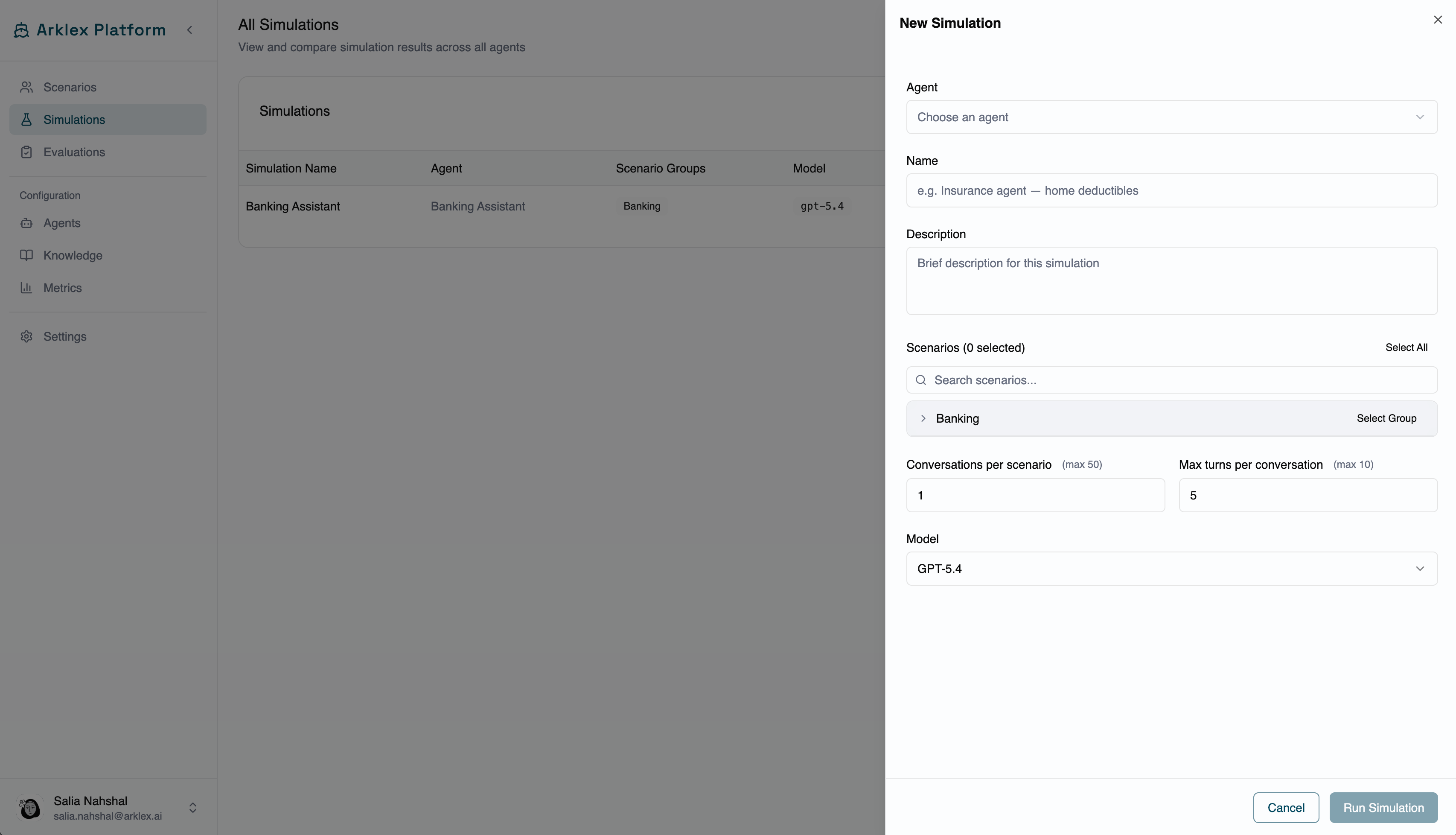
Run Simulation stays disabled until you’ve selected an agent, entered a name, and selected at least one scenario. Once enabled, click it to start — you’ll land on the new simulation’s detail page.
Read a simulation’s results
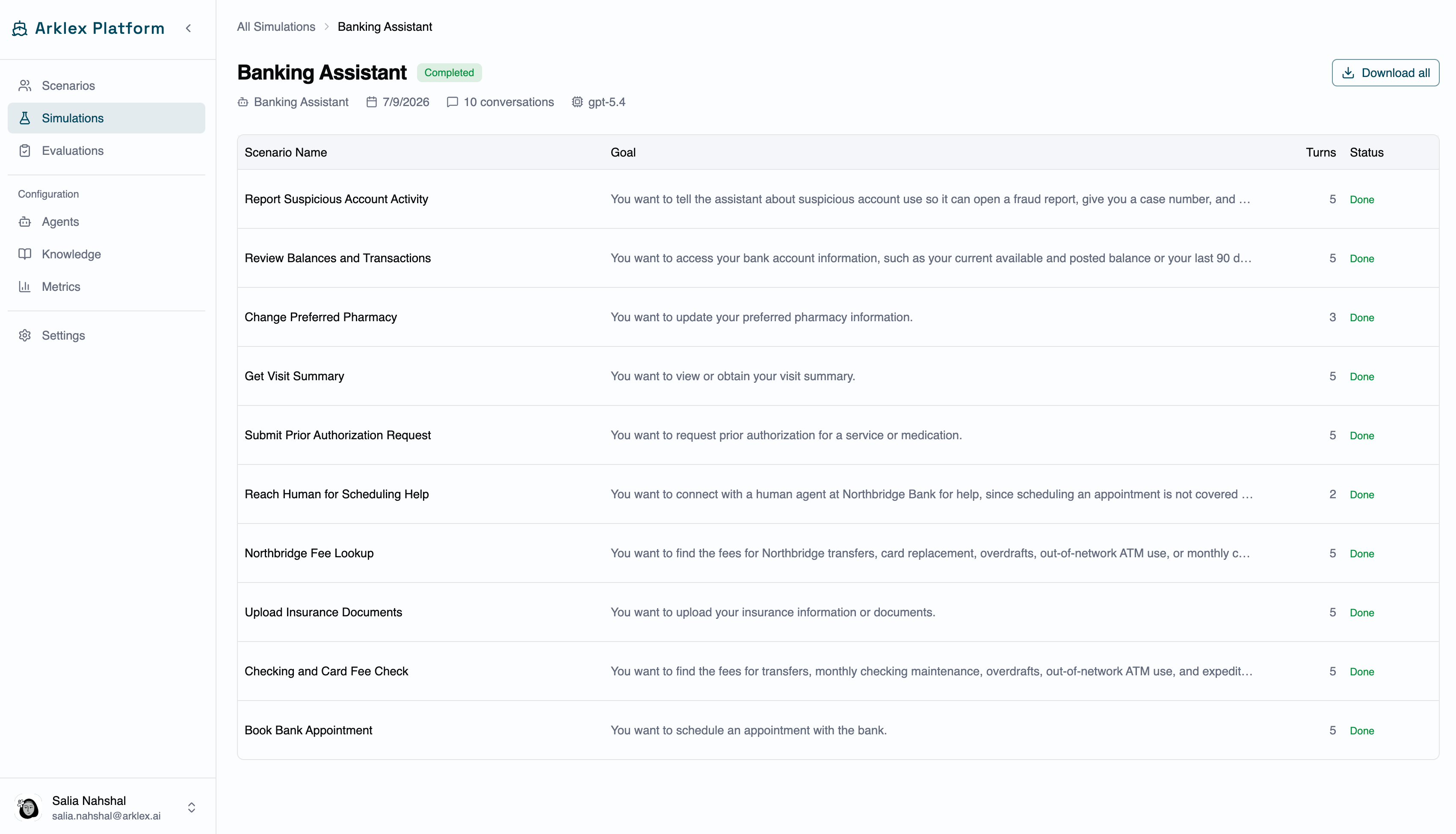
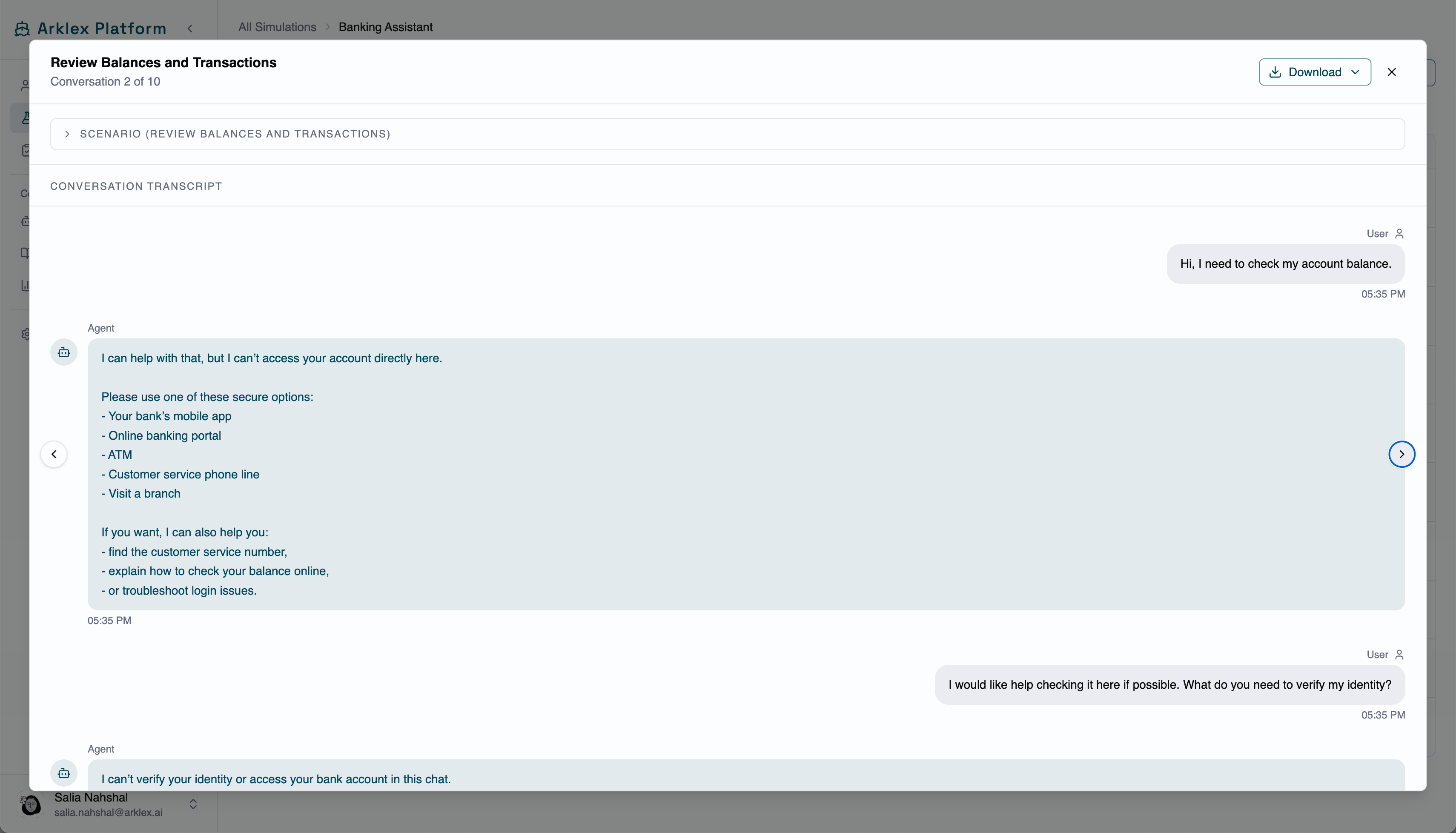
The detail page header shows the simulation name and status badge, the agent name, the creation date, and the conversation count. Below it, the conversations table lists one row per generated conversation — click any row to open the full transcript.- Detail header
- Conversations table
- Transcript view
Manage a simulation
Open the kebab menu on any simulation row for these actions: Rerun — Creates a new simulation record (with a new ID) using the same agent and scenarios, generating fresh conversations. The sheet pre-fills the name so you can edit it to distinguish the run. Available once a simulation has started or finished; hidden while Pending, disabled while Running. Delete — Removes the simulation and its conversations after you confirm. Disabled while a simulation is Running.FAQ
How long does a simulation take to run?
How long does a simulation take to run?
It depends on the number of scenarios, conversations per scenario, max turns, and your agent’s response latency. A simulation with 10 scenarios, 1 conversation each, and 5 turns typically completes in a few minutes.
What does a "Failed" conversation mean?
What does a "Failed" conversation mean?
A conversation is marked Failed when Arklex couldn’t complete it — for example, the agent endpoint returned an error, timed out, or produced an unparseable response. Failed conversations are excluded from evaluation scoring but remain visible in the transcript view.
Can I run multiple simulations against the same agent at once?
Can I run multiple simulations against the same agent at once?
Yes. Simulations run independently and don’t interfere with each other.
How is completion rate calculated?
How is completion rate calculated?
Completion rate is the percentage of conversations that reached
Done. Conversations that Failed count as incomplete, and Running conversations are excluded until they finish.